 Progress
Create a project
A project is the goal you want to reach — for example "Score 900 on the TOEIC" or "Finish my portfolio site". Tap the + button at the bottom right, choose "New project", give it a name, and confirm. The project's task screen opens, ready for you to fill in.
Tip: keep the project focused on one outcome. If it feels like two goals, make two projects.
Add tasks
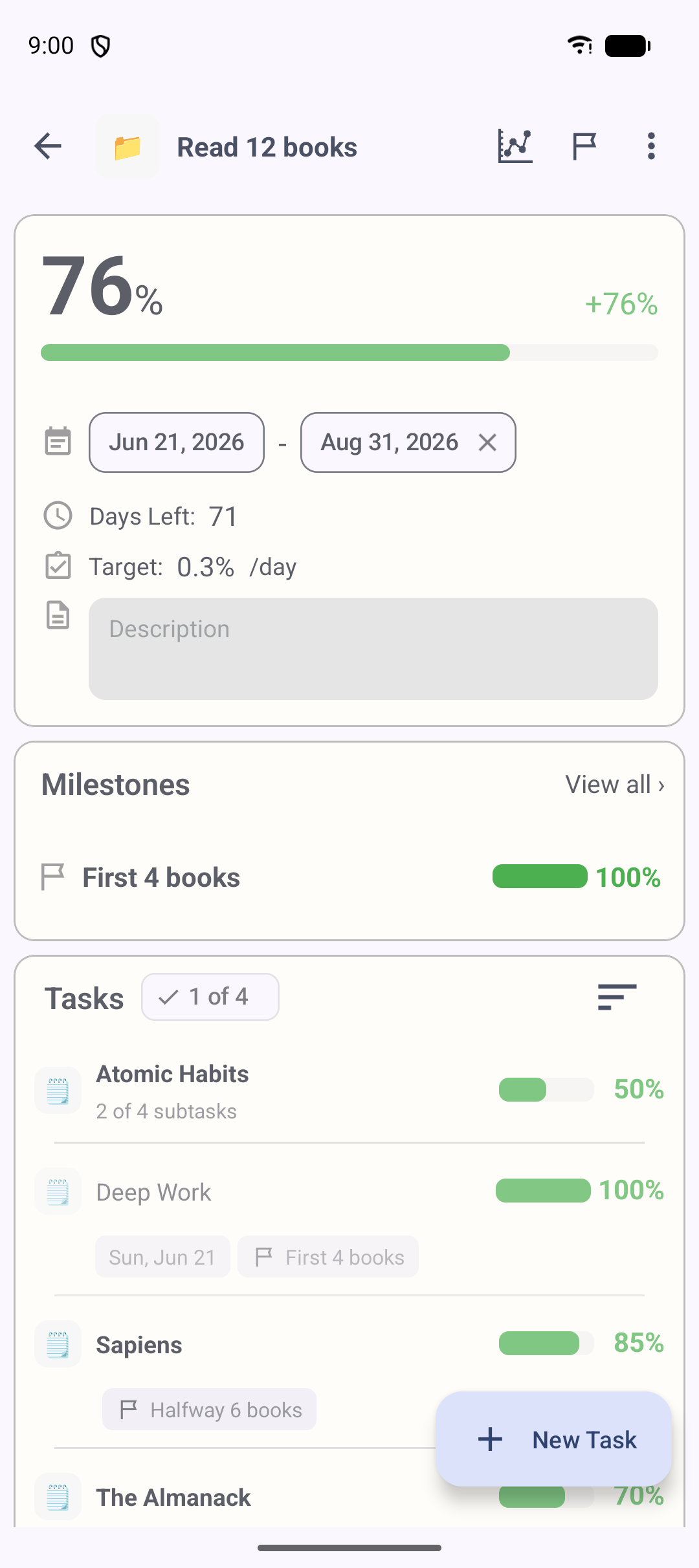
Break the goal into tasks — the concrete things you'll actually do. On the project's task screen, tap +, enter a task name, and confirm. Add as many as you need. Don't worry about getting the list perfect; you can reorder, rename or move tasks later.
Break large tasks into subtasks
If a task still feels too big to start, open it and add subtasks with the + button — and subtasks can nest inside subtasks. Breaking work down makes it clear where to begin today, and it means the progress bar moves more often as you finish the small pieces.
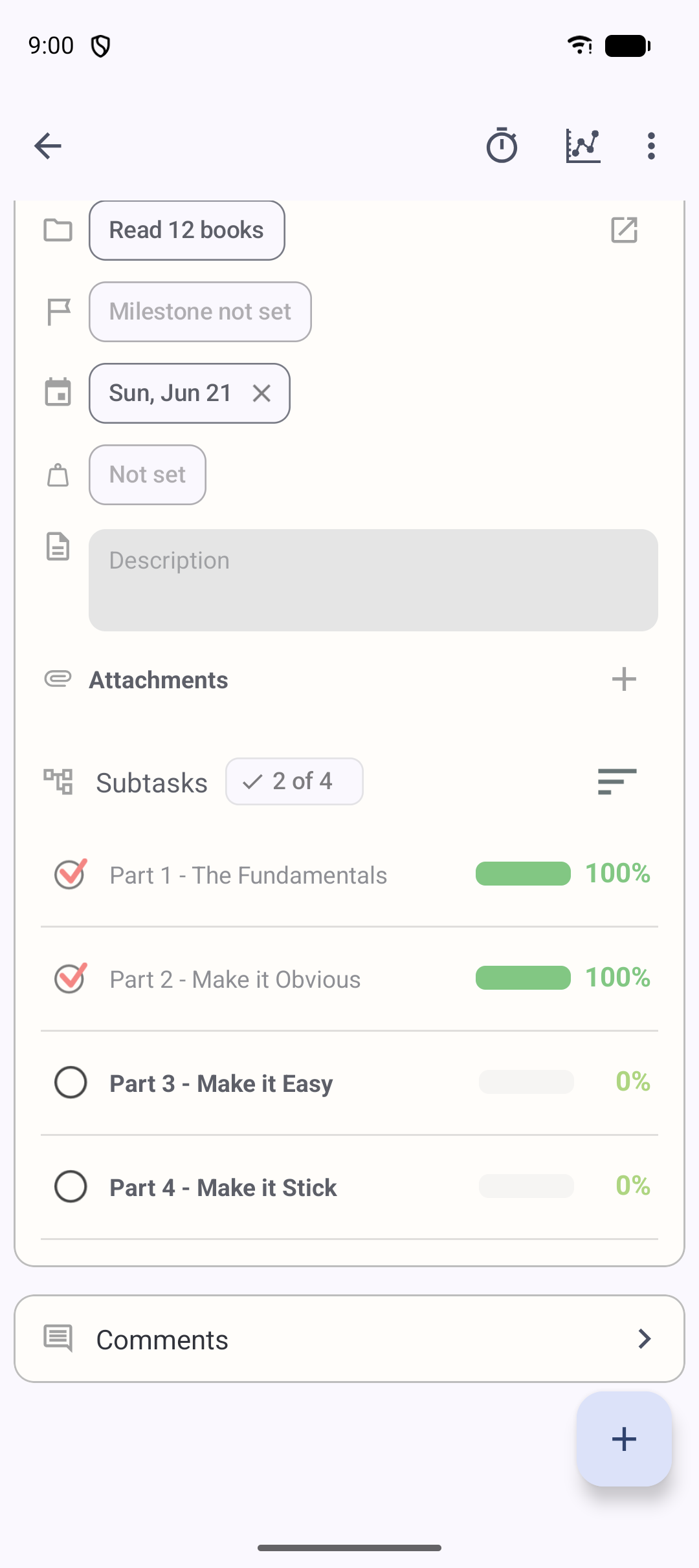
Tip: subtask progress rolls up to the parent task automatically — you don't set the parent by hand.
Set progress percentages
Open a task and set how far along it is — drag the slider from 0 to 100%, or use the +/− buttons to fine-tune by 1%. Tap the circle button to mark it done in one tap. Each update rolls up automatically: subtask → task → milestone → project, so your overall progress bar fills on its own.
Optional: give important tasks more weight (S, M, L, XL) so they move the project bar more than minor ones.
Add start dates and due dates
On a task's detail screen, set a start date and a due date. With both in place, Progress turns on deadline prediction: it works out the progress you should have reached by today, shows a daily target, and tells you whether you're on track or behind. Big long-term goals become "just today's share".
Use the Today view to decide what to work on
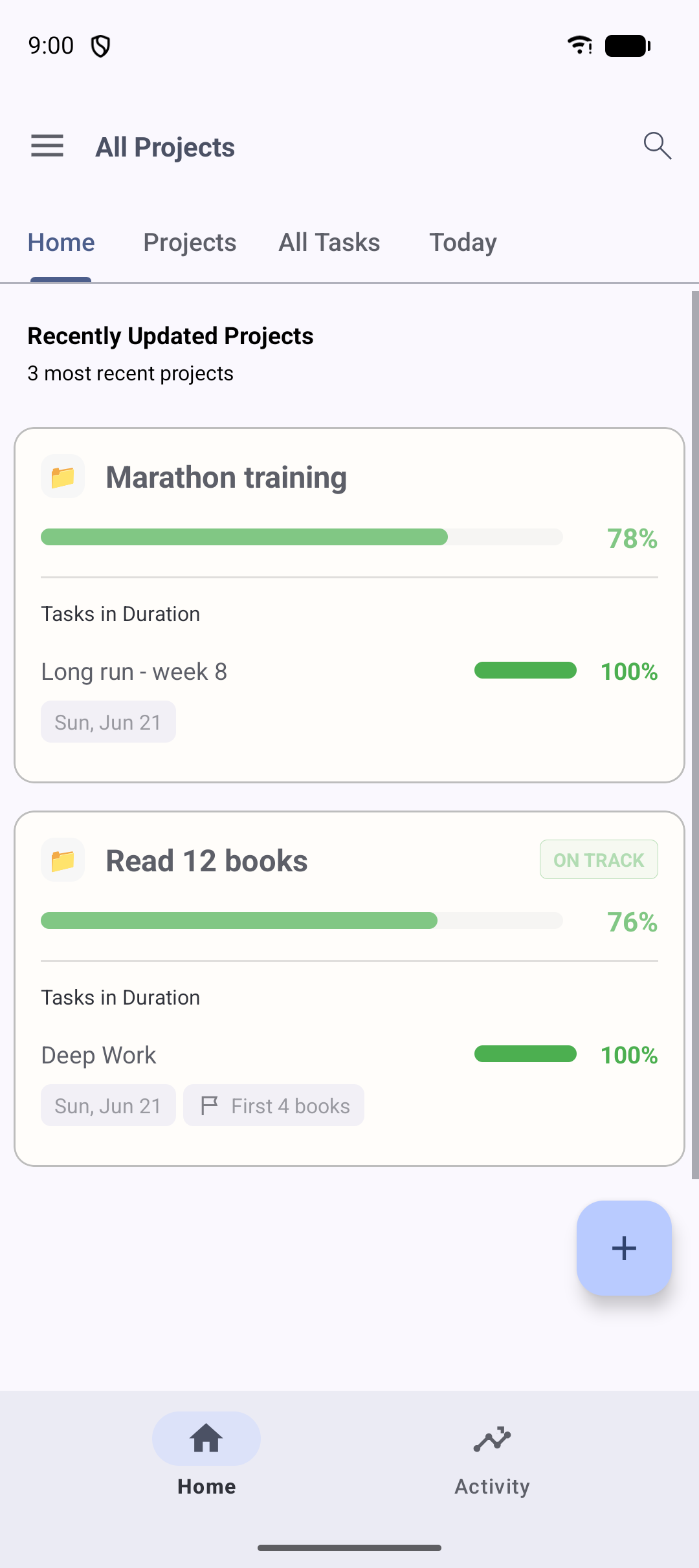
Open the Today screen to see your tasks grouped by deadline — "Today", "Within 7 days", "Within 30 days". It's the fastest way to answer "what should I do right now?". Tap any task to open it and update its progress on the spot.
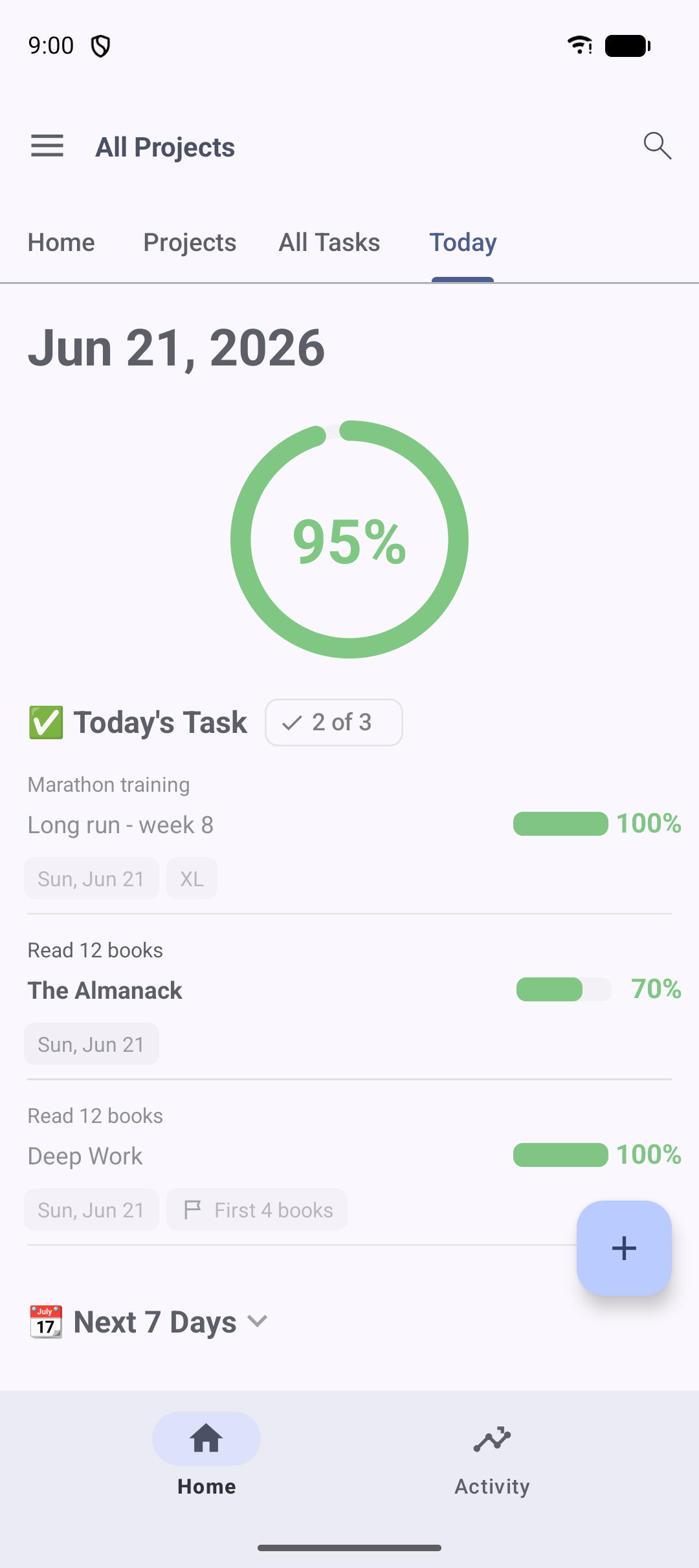
Tip: add a home screen widget and turn on the daily reminder so today's tasks find you.
Log time spent on your goals
Want to see the effort behind your progress? Open a task and tap Start in the Time section to run the built-in timer, then Stop when you're done. Forgot to start it? Add the session manually with the hours, minutes and date. Your activity heatmap fills in as you go, showing how consistent you've been.
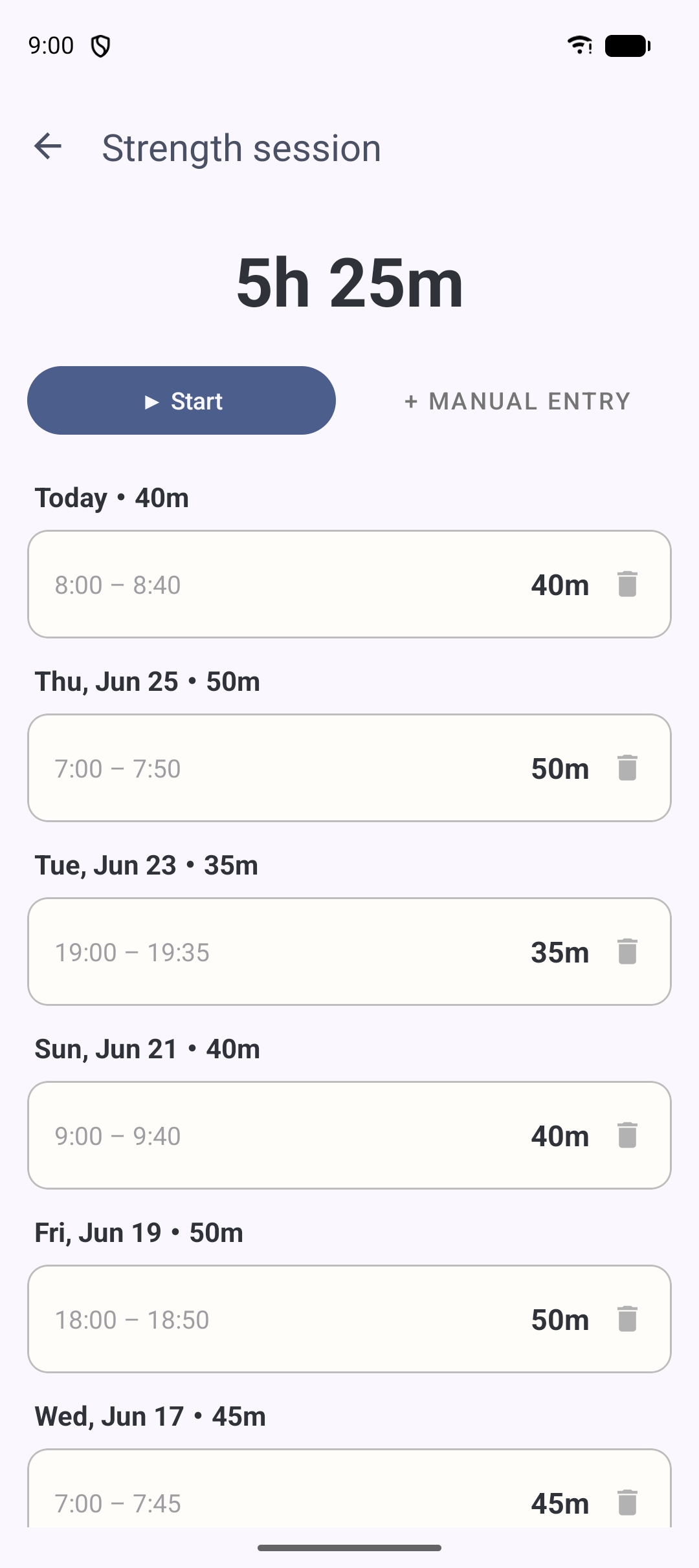
Review your progress regularly
Come back to see how far you've come. Open a project's statistics to watch its progress climb as a line graph, check the activity heatmap for your consistency, or generate a report and export it as a PDF to share. Regular reviews keep you connected to the goal and show your momentum building.
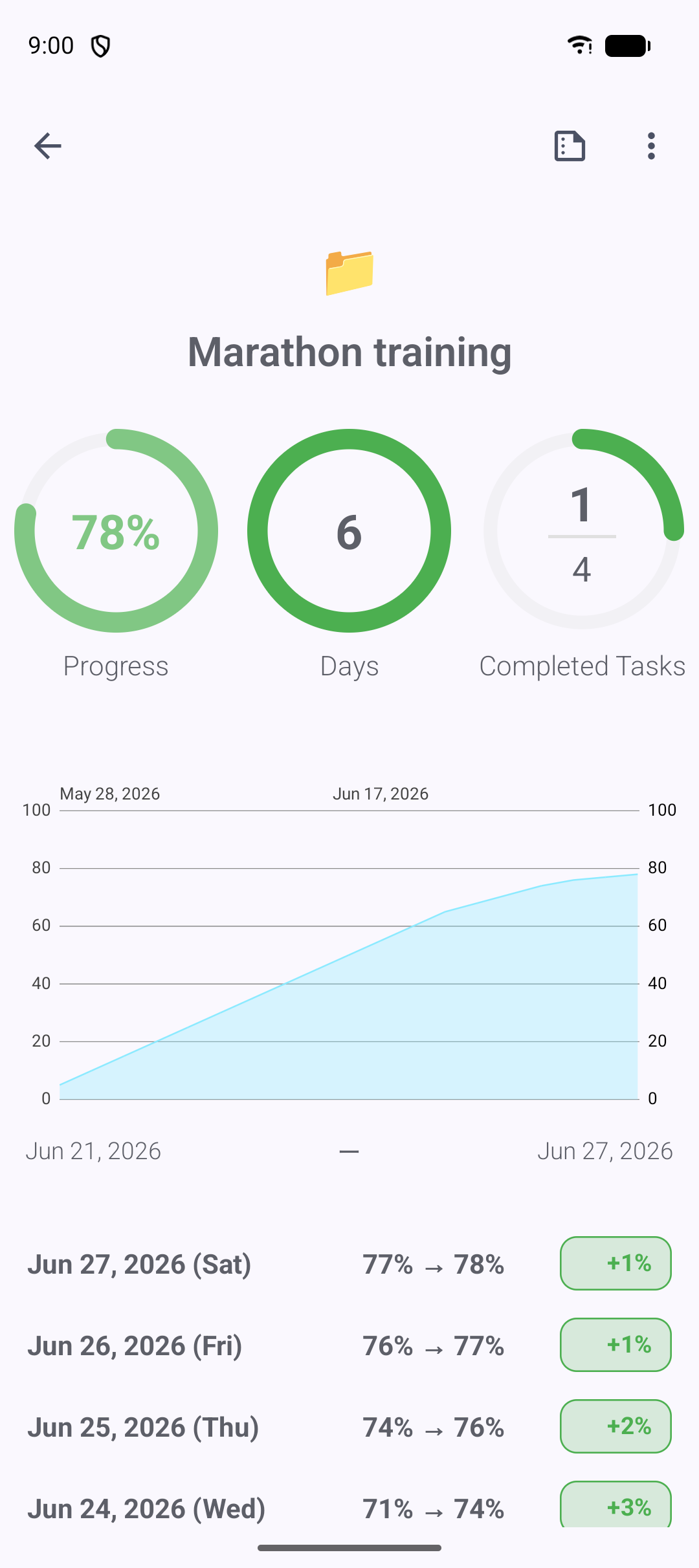
That's the whole loop
Create → break down → set progress → review. For a deeper reference on every screen and setting, read the full user guide, or browse use cases to see how others track their goals.