 Progress
Progress User Guide
Progress is an Android app that breaks your goals into a structure and makes your progress visible. This page explains each feature in detail. Use the table of contents on the left to jump to a topic.
Structure & how progress is calculated
Progress organizes goals into four levels. Each higher level is calculated automatically from the levels below it — no manual math required.
- Project — a goal you want to reach (e.g. "Score 900 on the TOEIC").
- Milestone — a checkpoint inside a project (e.g. "Finish one pass of grammar").
- Task — something concrete to do (e.g. "Finish one vocabulary book").
- Subtask — a task broken down further. Subtasks can nest inside subtasks.
How progress rolls up
Enter a progress rate (0–100%) for each task, and it rolls up to your overall project percentage.
- A task that has subtasks is calculated automatically from its subtasks (a manual value gets overwritten).
- A task with no subtasks is set by hand using the slider or the +/− buttons.
- Project progress is a weighted average of its tasks (see Weighting).
Projects
Create
- Tap the + (add) button at the bottom right and choose "New project".
- Enter a project name and confirm.
- The project's task screen opens.
Rename, delete, copy
Use the menu (⋮) at the top right of the project's task screen.
- Rename — edit the project name.
- Copy — duplicate the project with all its tasks and subtasks. This can take a moment for large projects.
- Delete — after confirmation, removes the project along with its tasks and subtasks.
Archive
Finished projects can be archived from the menu to keep your list tidy. Archived projects can be restored at any time.
Tasks
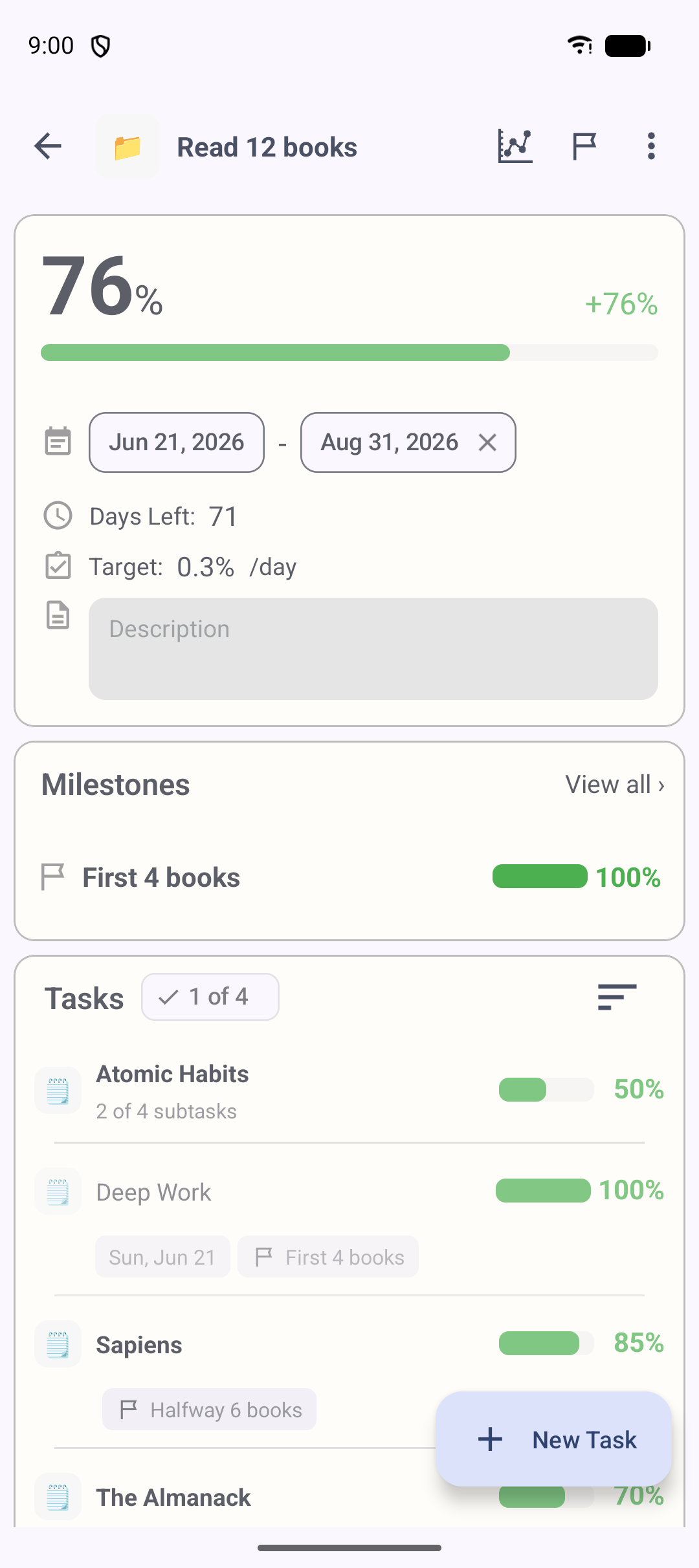
Create
- On a project's task screen, tap the + button.
- Enter a task name and confirm. The task's detail screen opens.
Enter progress
Update progress from the task detail screen.
- Drag the slider to set 0–100%.
- Use the + / − buttons to fine-tune by 1%.
- Tap the circle button on the left to mark it 100% (done) in one tap. If the task has subtasks, you'll be asked whether to set them all to 100%.
Reorder
Long-press and drag a task to reorder it. Reordering only works when the sort order is set to "Custom" (you can't drag while sorted by due date, progress, etc.).
Move or copy to another project
- Move — tap the task's project field and choose a destination. Its subtasks move with it.
- Copy — duplicate it from the menu, including subtasks.
Dates, notes & attachments
From the task detail screen you can set a start date and due date, add notes, and add file attachments and comments. Setting a due date enables deadline prediction.
Subtasks
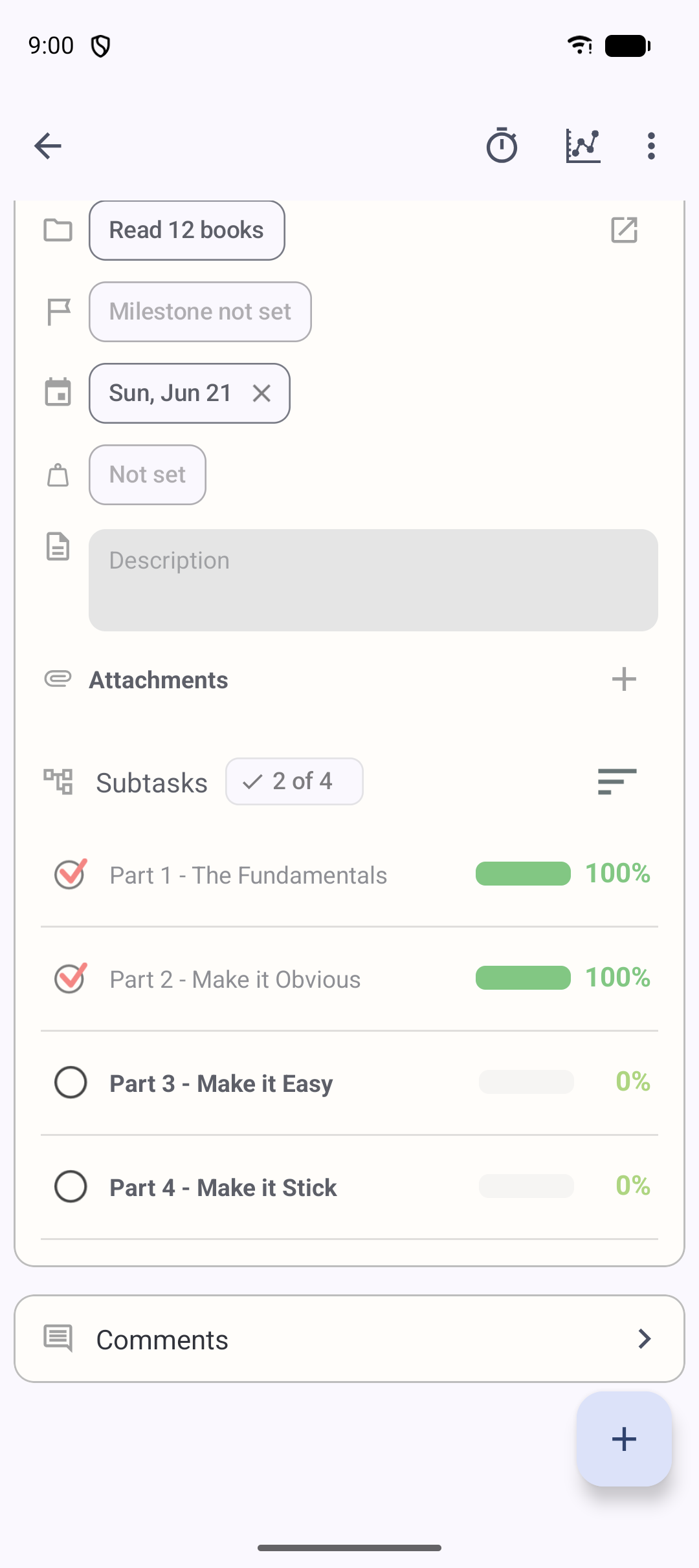
Create & break down
- Add a subtask with the + button on the task detail screen.
- Open a subtask's detail screen and add more subtasks inside it to go deeper.
When a task feels too big to start, breaking it into subtasks makes it clearer where to begin today.
Reorder, move, promote
- Reorder — long-press and drag (sort order must be "Custom").
- Move — from the menu, move a subtask under a different task or subtask.
- Promote to task — turn a subtask into a full task. Its child subtasks come along with it.
Depth
The free plan limits how deep subtasks can nest. With the Expert Plan you can break work down to 6 layers deep. A notice appears when you reach the limit.
Milestones
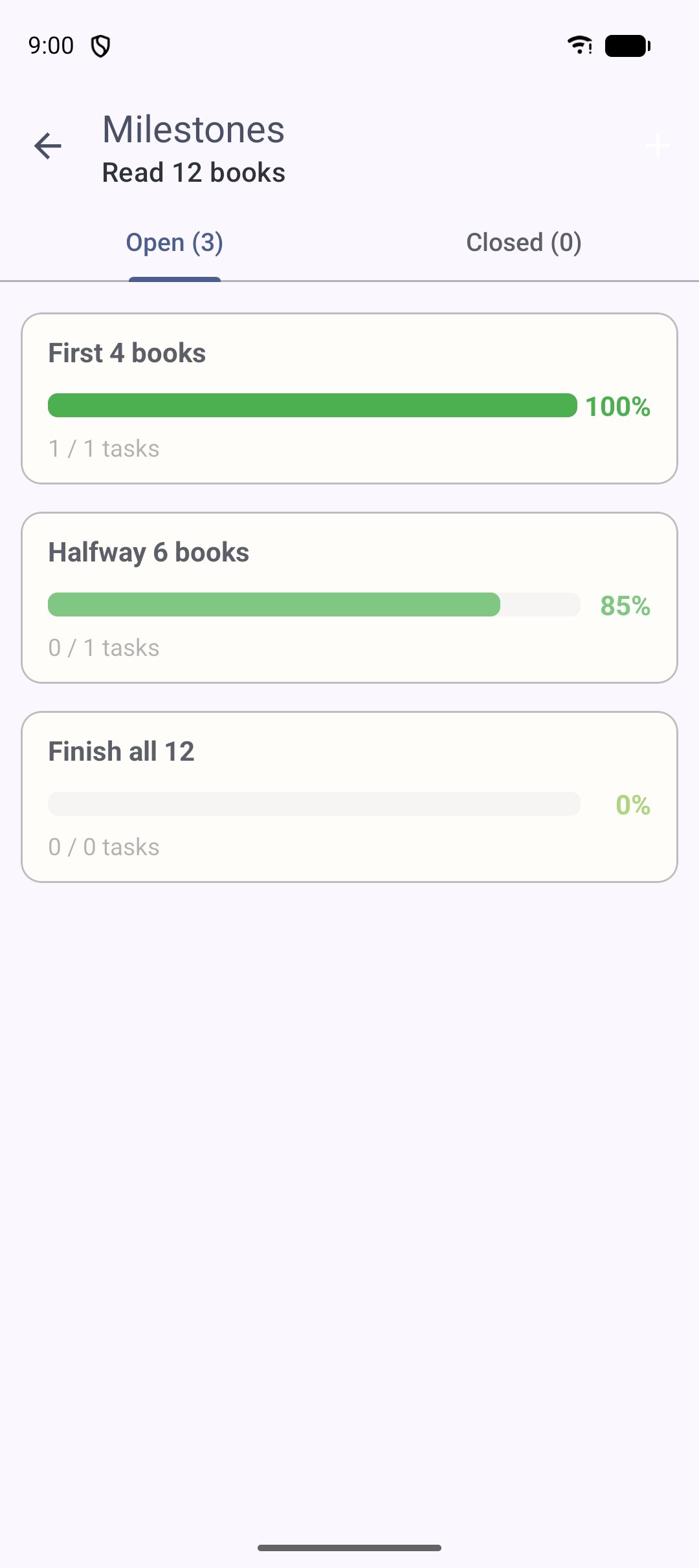
A milestone is a checkpoint on the way to your goal. Splitting a big goal into "what to aim for next" lets you move forward one step at a time.
Create & edit
- Choose "Add" from a project's milestone list.
- Enter a name (required), a description (optional), and a due date (optional — "no due date" is allowed).
- Edit or delete from the milestone detail screen's menu.
Link tasks
- Create new — use the + button on the milestone detail screen to create tasks under that milestone.
- Link existing — tap the "Milestone" field on a task and pick which milestone it belongs to.
What the milestone detail shows
- Progress (a weighted average of its tasks) and completed / total task count
- Incomplete and completed tasks on separate tabs
- The due date and close status (a closed milestone can be reopened)
Weighting
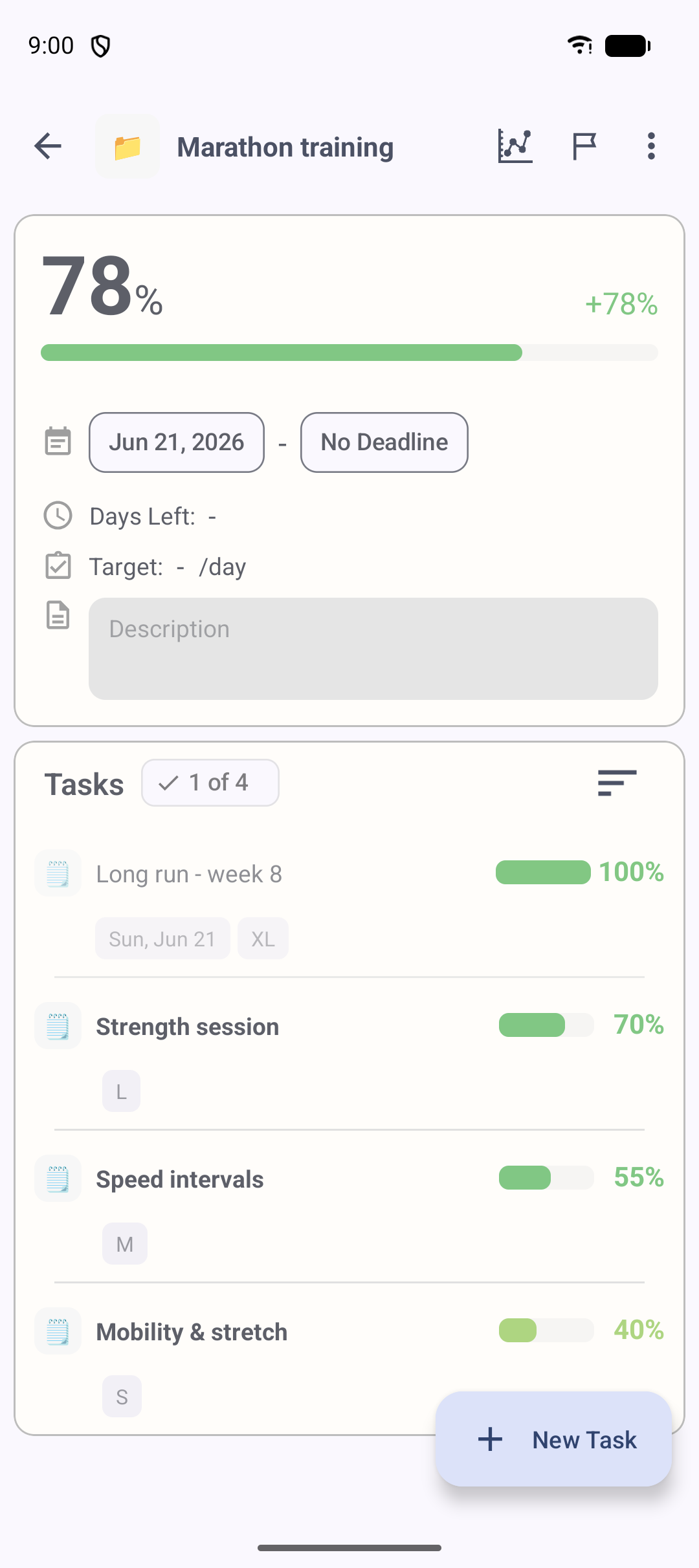
Not every task matters equally. Weights make the bar reflect the work that actually matters, instead of just the number of items you've checked off. Heavier tasks move the total more.
Set a weight
Tap the "Weight" field on a task (or subtask) detail screen and pick one.
| Label | Weight | Rough meaning |
|---|---|---|
| Not set | counts as 1 | Default. Everything treated equally |
| S | 1 | Light |
| M | 2 | Standard |
| L | 3 | Heavy |
| XL | 5 | Most important |
The formula
Project (and milestone) progress is a weighted average:
Example:
- Task A: 50% progress × weight M(2) = 100
- Task B: 100% progress × weight L(3) = 300
- Task C: 0% progress × weight Not set(1) = 0
Changing a weight recalculates the overall percentage automatically. Weighting is available on both the free and Expert plans.
Dates & deadline prediction (on track / behind)
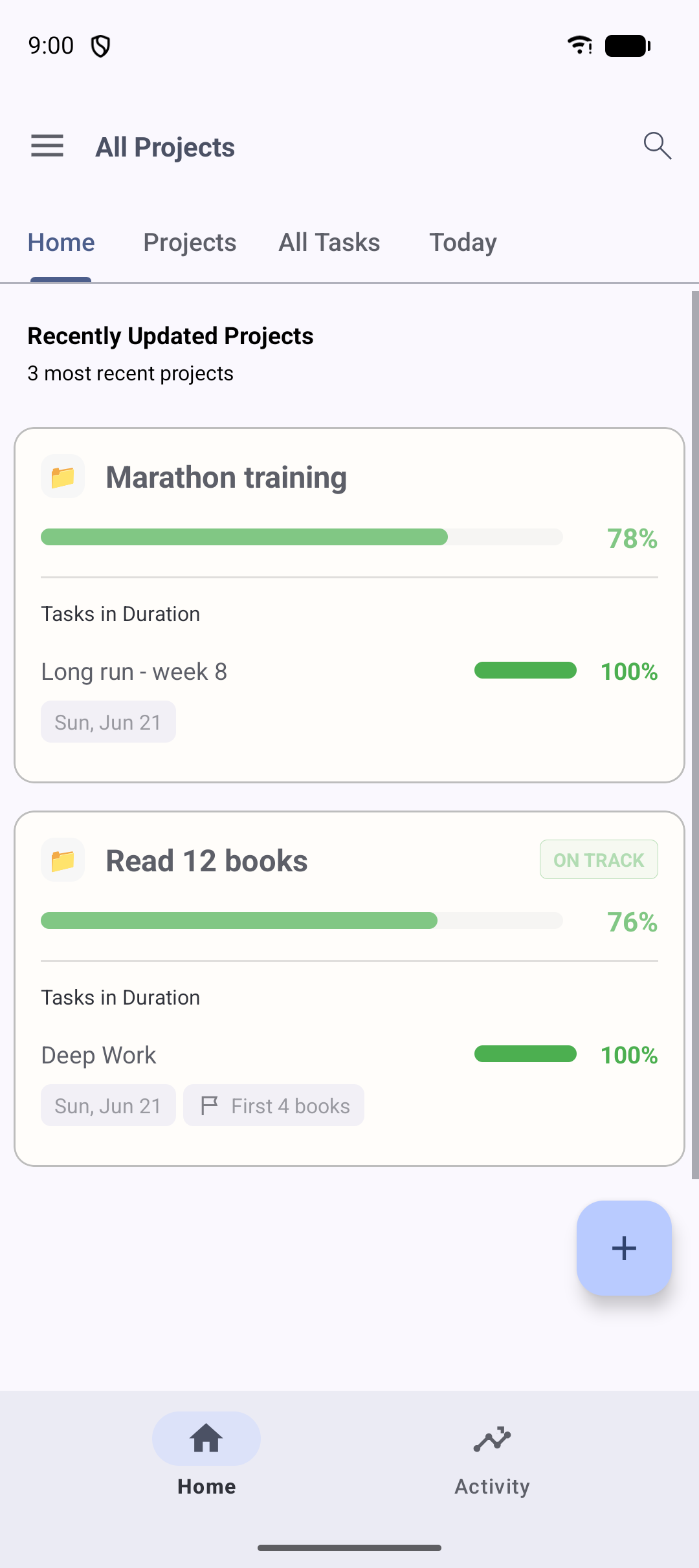
Beyond "how far you've come", Progress tells you whether you'll make it.
Set it up
Set a start date and a due date on the task detail screen. With both set, prediction turns on.
Daily target
Based on the days between the start and due date, Progress calculates the progress you should have reached by today. This breaks even a big long-term goal into "today's share", so it stays manageable.
On track / behind
- If your actual progress meets the required line, you're on track.
- If it falls short, you're behind.
The required line is shown as a faint overlay bar on the home cards and task detail.
Recurring tasks
Not everything is finished in one go. "Learn 10 English words a day", "run three times a week", "sit a mock exam every Sunday" — a recurring task turns that kind of repeated effort into progress you can watch climb, right alongside your one-off tasks in the same project.
Each round of a recurring task is created as a subtask, so every single day (or session) can carry its own work time, files and notes.
Create one
- Tap the + button to add a task and turn on the Recurring switch before you confirm.
- The task detail screen opens with the Set Up Recurrence sheet.
- Choose a frequency — Daily, or Weekly with the days of the week you pick — and set a start date and end date. The end date is required, because the goal is calculated from the period.
- Tap Done. Progress counts the matching days in that range and sets your goal automatically.
The setting is shown as a chip on the task detail screen — for example Daily (Goal: 91 times) — and a loop icon marks the task in your task list so you can tell it apart at a glance.
Completing each round
Once it's set up, one round waits for you as an incomplete subtask named after the task and its date. Open it and record the day's work.
- Drag the slider to 100% — a Done! 🎉 dialog appears showing how far you've come (
12 / 91 completed). Tap OK and the next round is created automatically with the next due date. - Only got partway? Leave the slider where it is and tap Skip to Next. Your partial progress stays recorded and still counts toward the goal.
- Just logging progress? Any value from 1–99% is simply saved — the round stays open for you to come back to.
The next round's due date is never in the past: it's whichever is later, the next date on your schedule or today. Miss three days and you get today's round, not a backlog of overdue ones.
No new round is generated once the next date would fall past the task's own due date, or once you've reached the goal.
How progress is calculated
Recurring progress is the total of every round, against the goal:
So 12 rounds finished plus one at 60%, against a goal of 91:
That percentage feeds the milestone and project weighted average exactly like a normal task, so recurring and one-off work add up together.
Adjust it later
- Change the frequency or period — tap the recurrence chip on the task detail. The goal is recalculated from the new period.
- Stop it — set it to "No repeat" from the same sheet. New rounds stop being generated; the rounds you've already recorded stay, and progress keeps being counted the recurring way.
- Add a day you forgot — add a round with that past date and mark it complete.
- Undo a round completed by mistake — delete that subtask, and the completed count goes back down.
A few things work differently on a recurring round: it has no weight, it can't be moved or given child subtasks, and the task's start and due dates can't be cleared (the goal depends on them). You can still add your own ordinary subtasks to a recurring task whenever you need to.
Time tracking
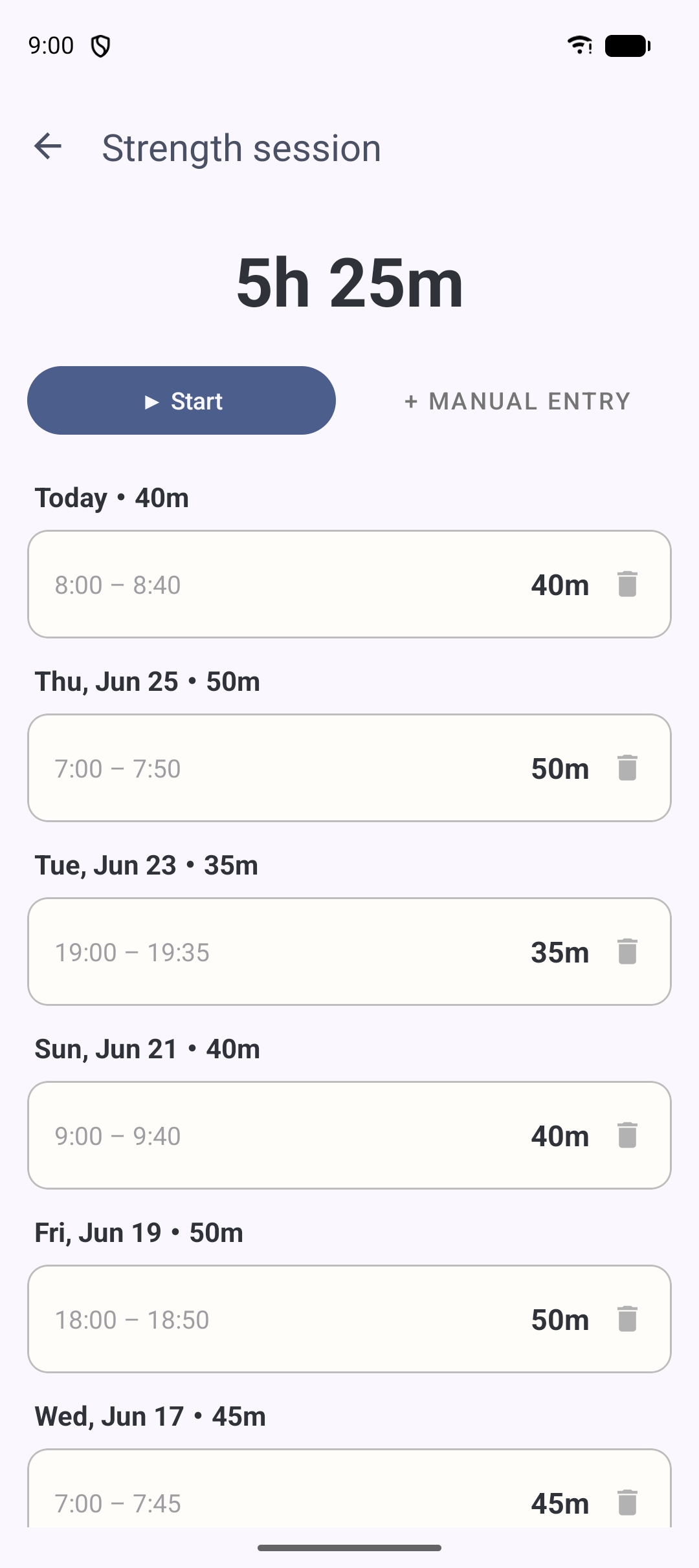
You can record the time you put in, too. Start a timer on any task or subtask to make your effort visible.
Track time
- Tap Start in the "Time" section of a task (or subtask) detail screen.
- While running, a running-timer bar appears with the elapsed time. Tap it to return to the task being timed.
- Tap Stop to record the time.
- Starting a timer on another task asks whether to stop the previous one (only one runs at a time).
- While running, the elapsed time shows in a notification (Android 13+ requires notification permission).
- As a safety net for forgotten timers, a single run stops automatically after 24 hours.
Add time manually
If you forgot to use the timer, use "Manual entry" to log past work by specifying hours, minutes, date and start time.
Activity & heatmap
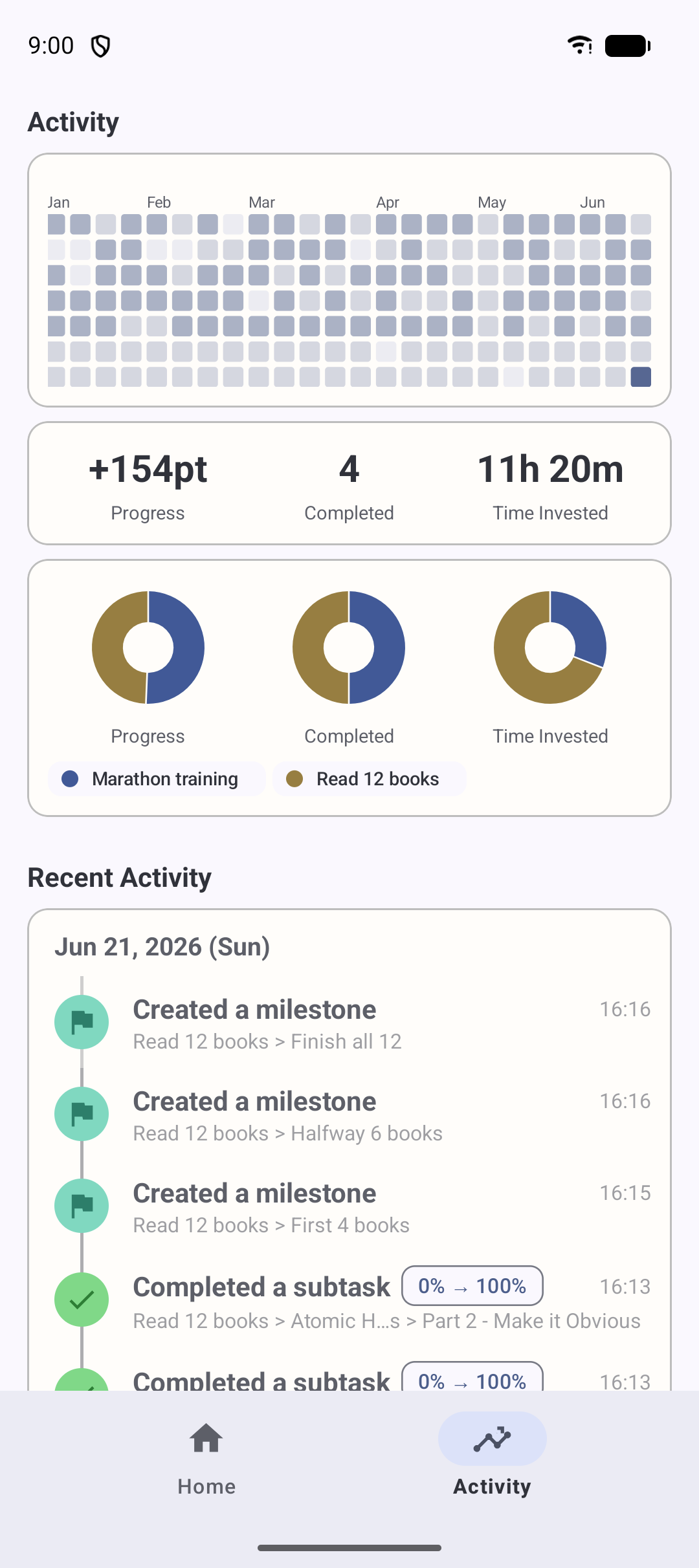
The Activity screen lets you look back on what you've done.
Activity heatmap
Like the GitHub "contribution graph", it shows about the last year (52 weeks) of activity as a calendar of squares. Busier days are darker, so you can see at a glance how consistently you've kept at it.
Square intensity reflects actions such as completing tasks, updating progress and creating tasks, as well as recorded work time.
Recent activity
Below the heatmap, recent actions — progress updates, completions, creations — are listed newest first.
Reports & graphs
Statistics (graph)
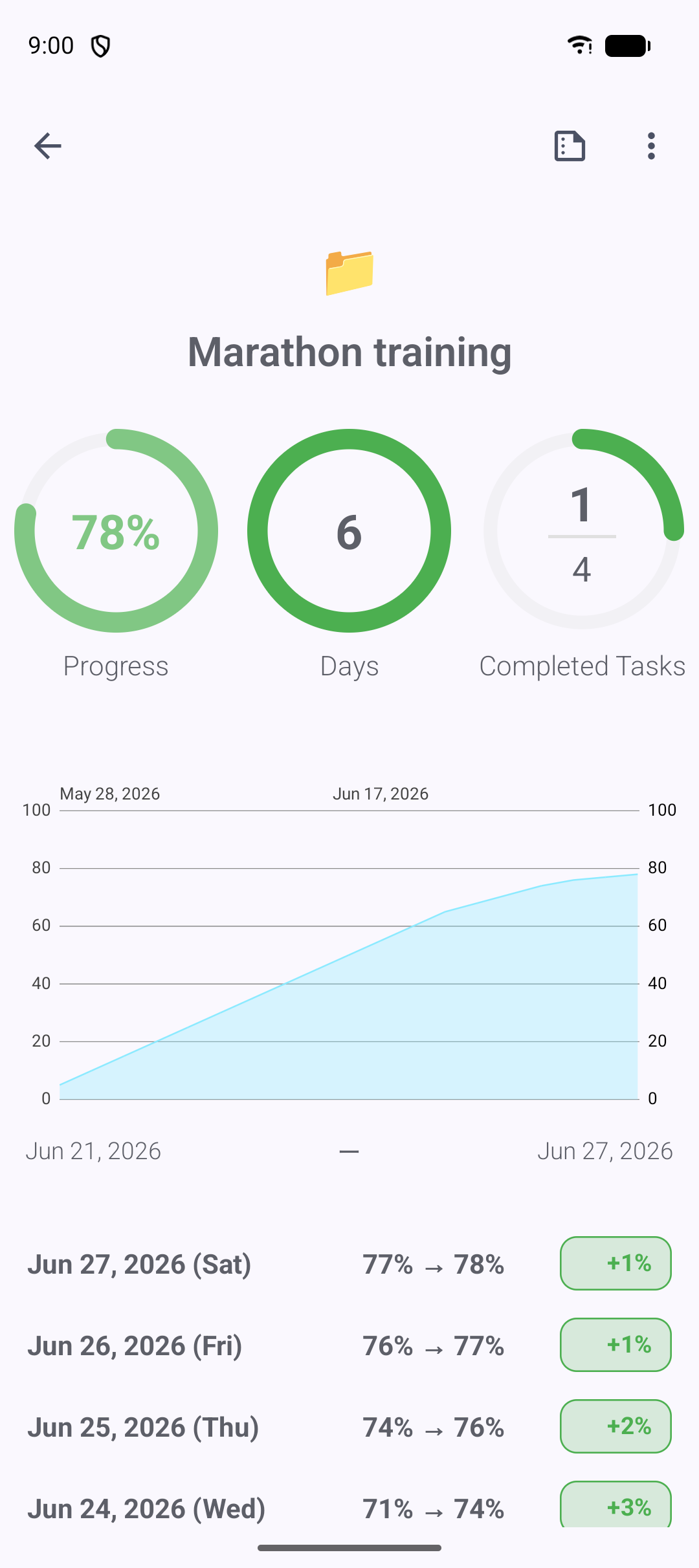
See a project's progress over time as a line graph. Daily progress is recorded so you can watch the trajectory. Tap a point on the graph for details.
Per-task graph
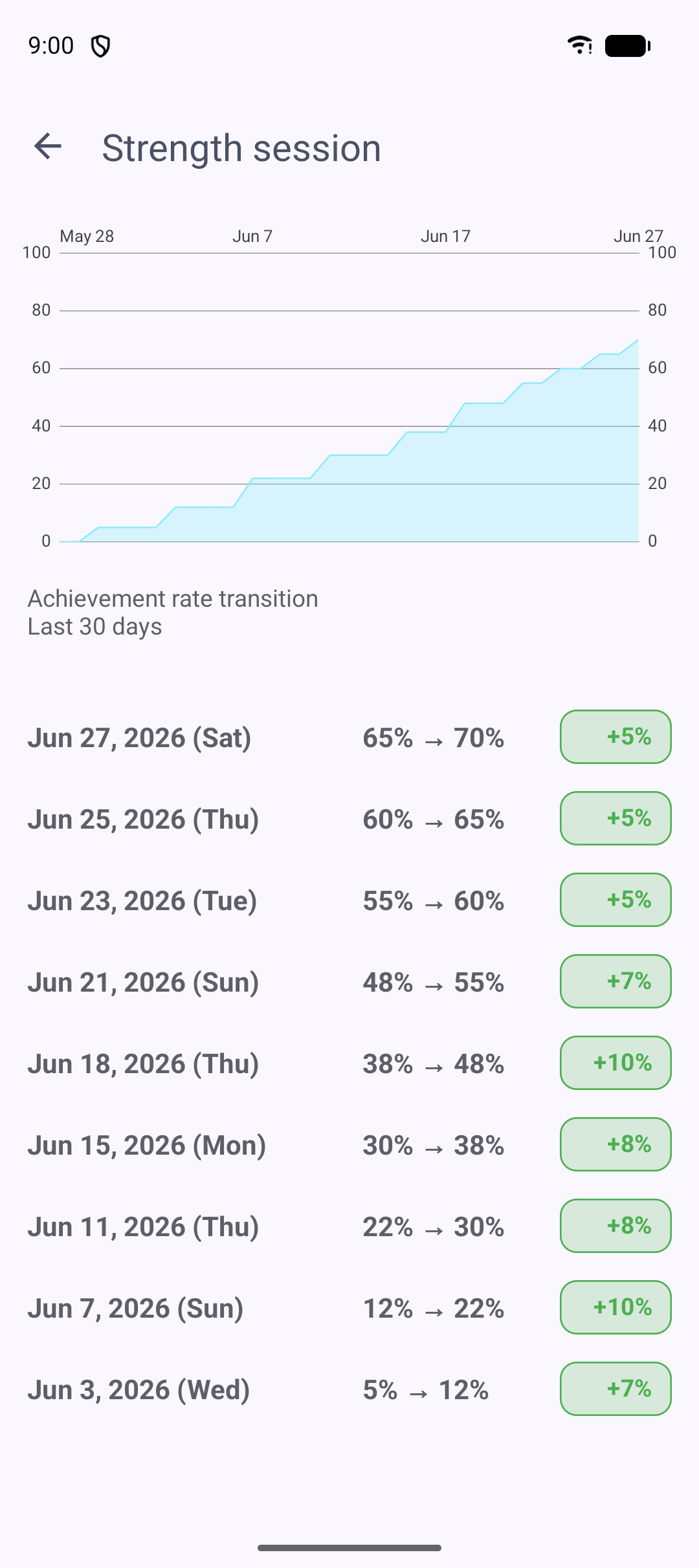
From a task's detail screen you can open a progress-over-time graph for that task, drawn from the daily progress logs.
Report
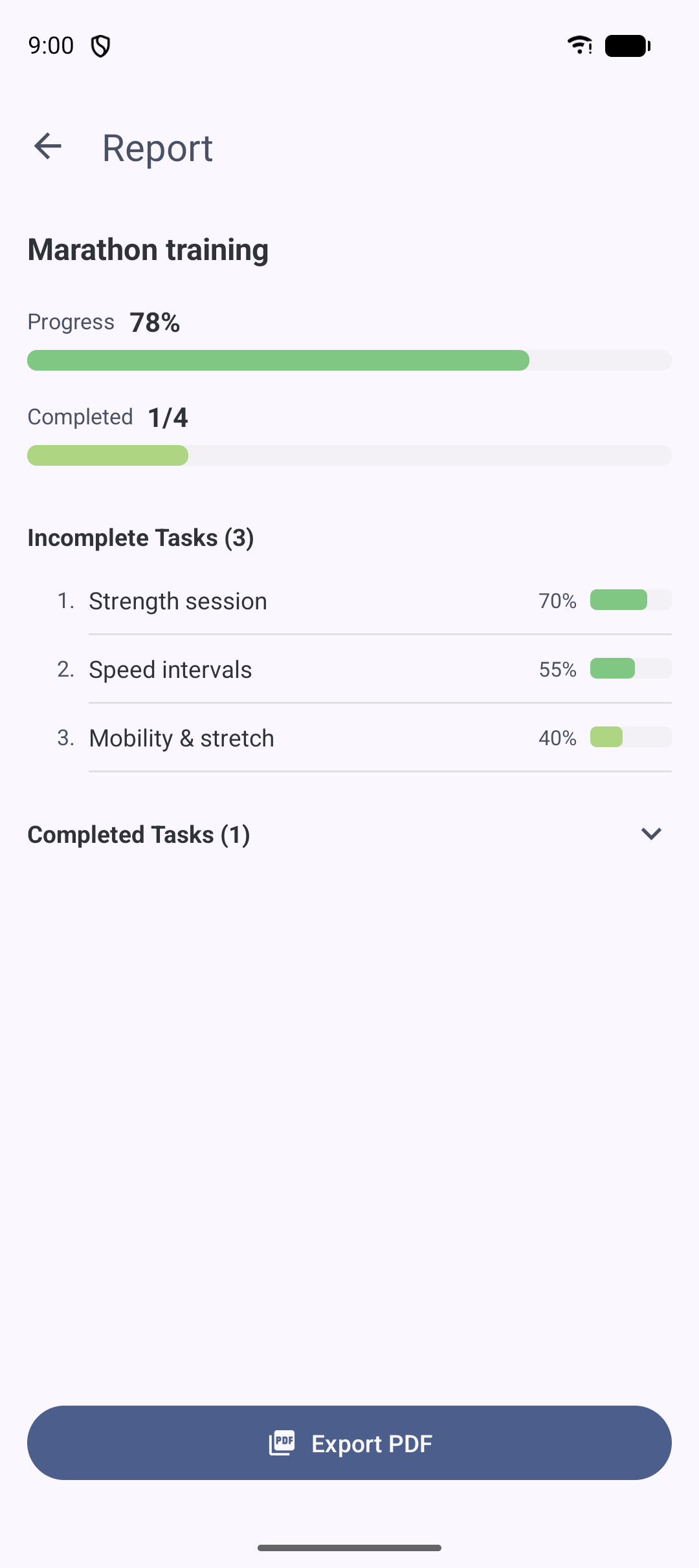
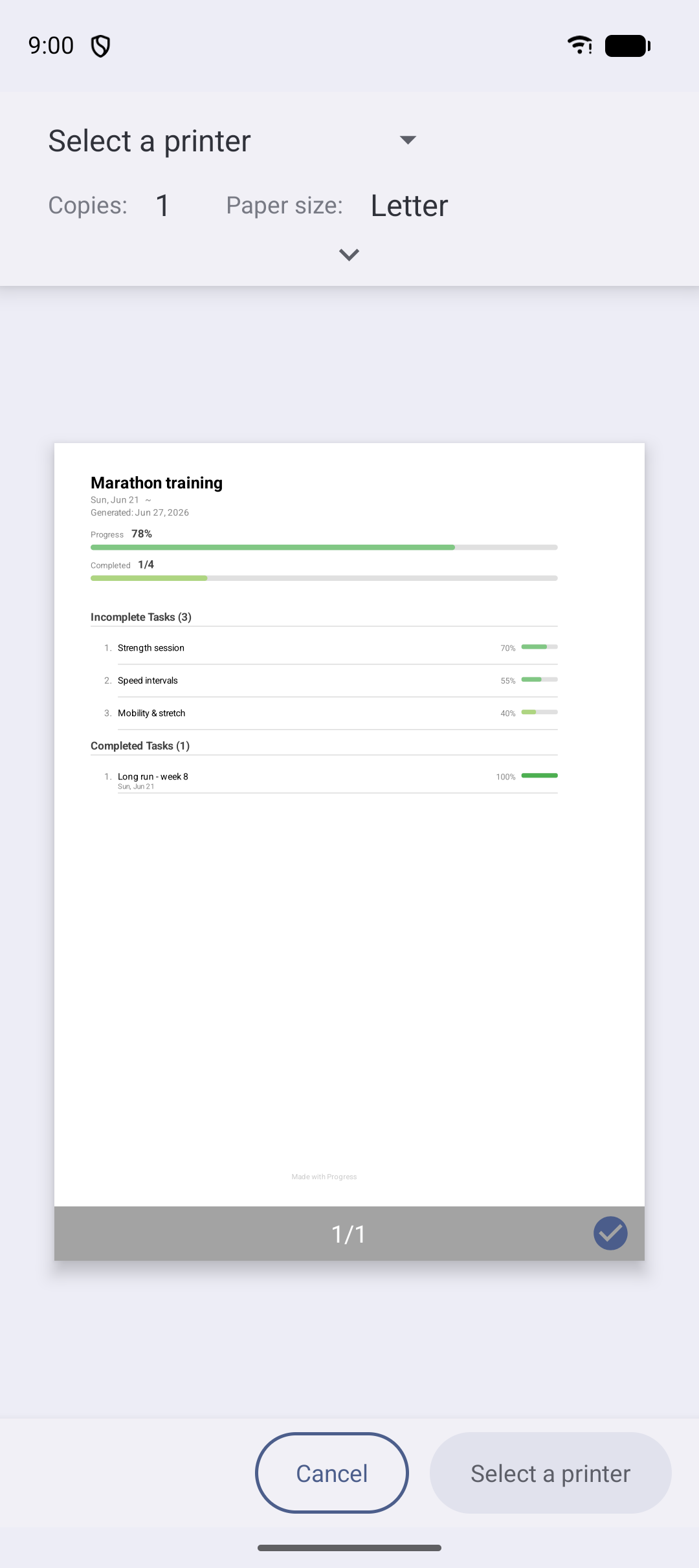
View a summary of a project (progress, completed task count, due date, days remaining and a task list), and export it as a PDF to share.
Today
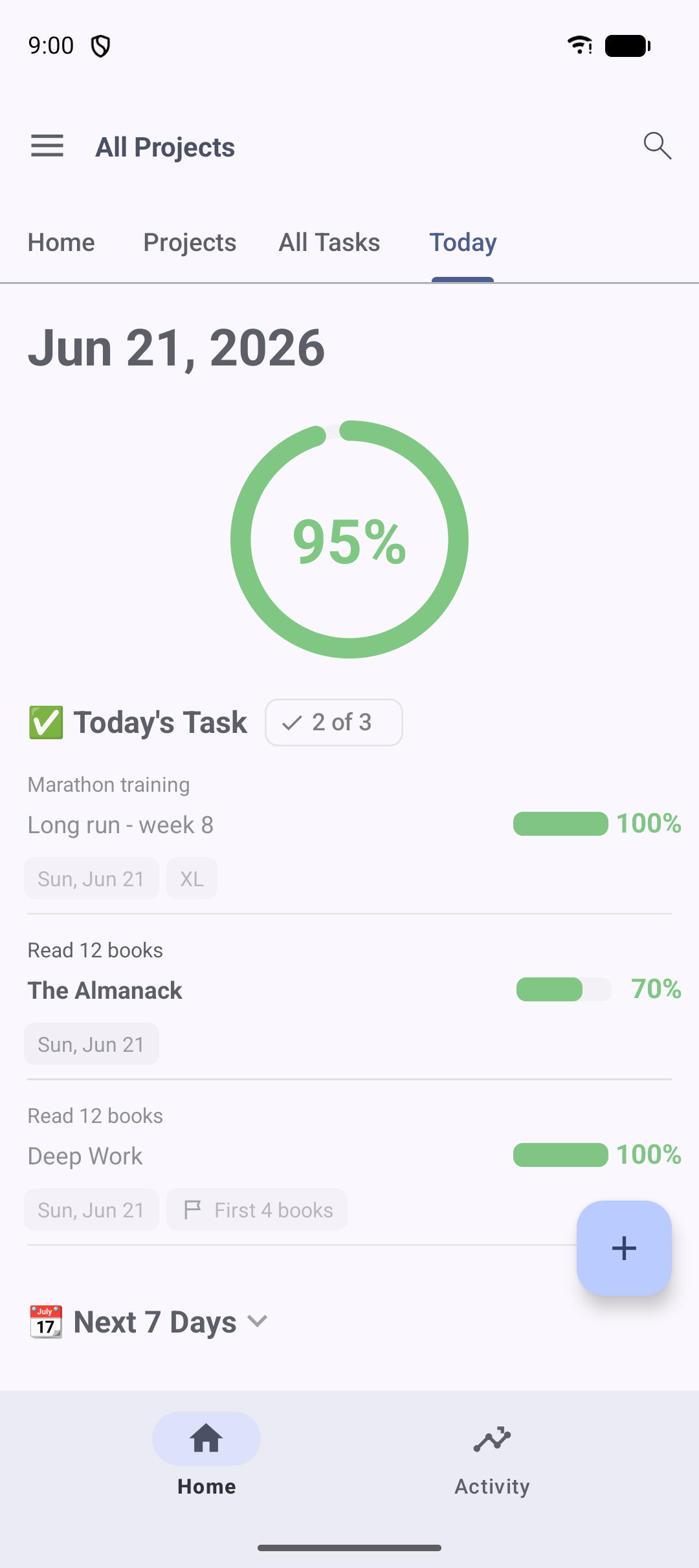
The screen you start your day from. It groups tasks with upcoming due dates by deadline so you can see what to do today.
- Tasks are split into sections like "Today", "Within 7 days" and "Within 30 days".
- Tap a section header to collapse or expand it (the state is remembered).
- Tap a task to open its details and update progress right there.
- Pull down to refresh.
Home screen widgets
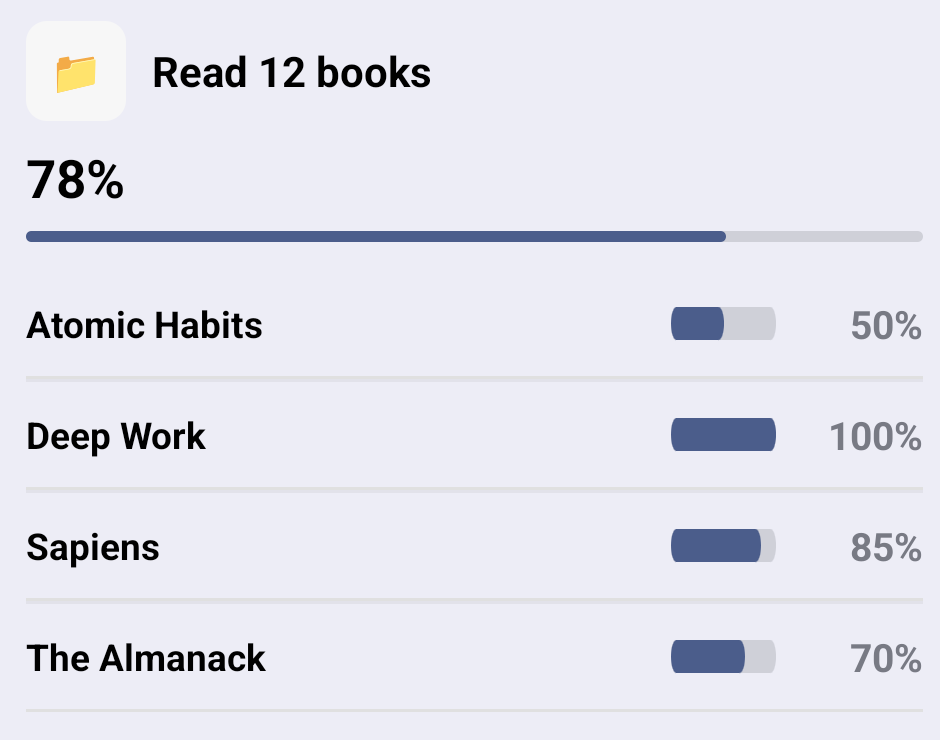
Check your progress from your home screen without opening the app. There are three widgets.
| Widget | Shows |
|---|---|
| Today's progress | A summary of today's progress |
| Today's tasks | Tasks due today |
| Project tasks | The progress and tasks of a project you choose |
Add one
- Long-press your home screen and open "Widgets".
- Find "Progress" and place the widget you want.
- For "Project tasks", choose which project to display.
Notifications
Get a push reminder for tasks due today.
- Open Settings and turn on "Notifications" (Android 13+ requires notification permission).
- Choose the reminder time under "Today's tasks" (default 9:00).
At the chosen time, the tasks due that day are bundled into a single notification.
Comments & file attachments
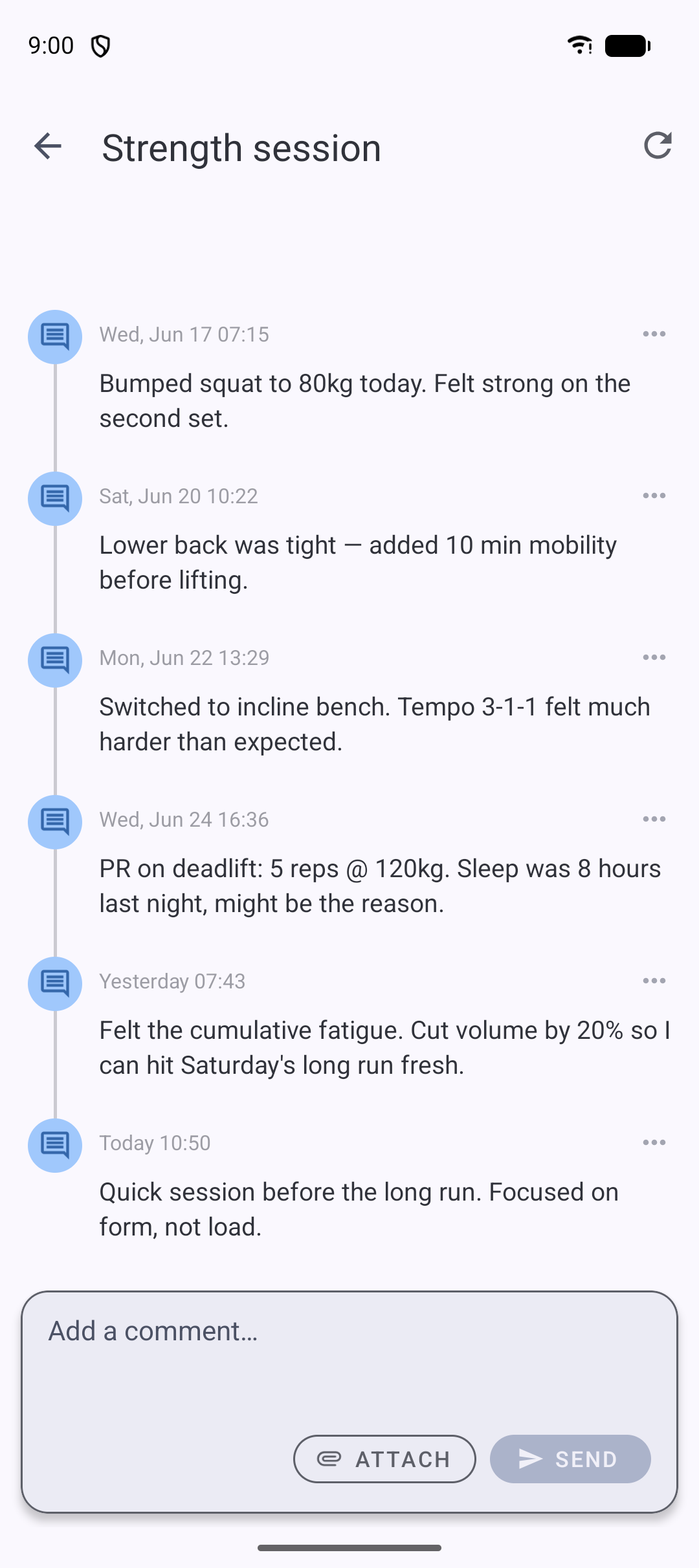
Attach files
Attach images, videos and files to a task. Choose a type from "Attach" on the task detail screen. The storage limit differs between free and the Expert Plan (Expert gets more).
Comments & notes
Leave comments (notes) on a task. Comments can include attachments and can be edited or deleted later — handy for keeping reference material and context together.
Search
Search tasks and subtasks across all projects by keyword. Results narrow as you type, and you can filter by incomplete/complete and sort by due date, progress and more. Tap a result to jump to its detail screen — a handy way to pick back up a task you haven't touched in a while.
Sync & backup
Your data is stored on your device and supports cloud sync, so it carries over when you change devices.
- Automatic sync — changes are pushed to the server in the background. You normally don't need to think about it.
- Manual sync — run a sync immediately from the "Sync" menu.
- Export / import — export and import your data as CSV / ZIP from the settings screen.
Project groups
Organize multiple projects into groups (an Expert Plan feature). From "Project groups" in Settings you can create, edit and delete groups and assign projects to them. Deleting a group does not delete the projects in it.
Member check-in (beta)
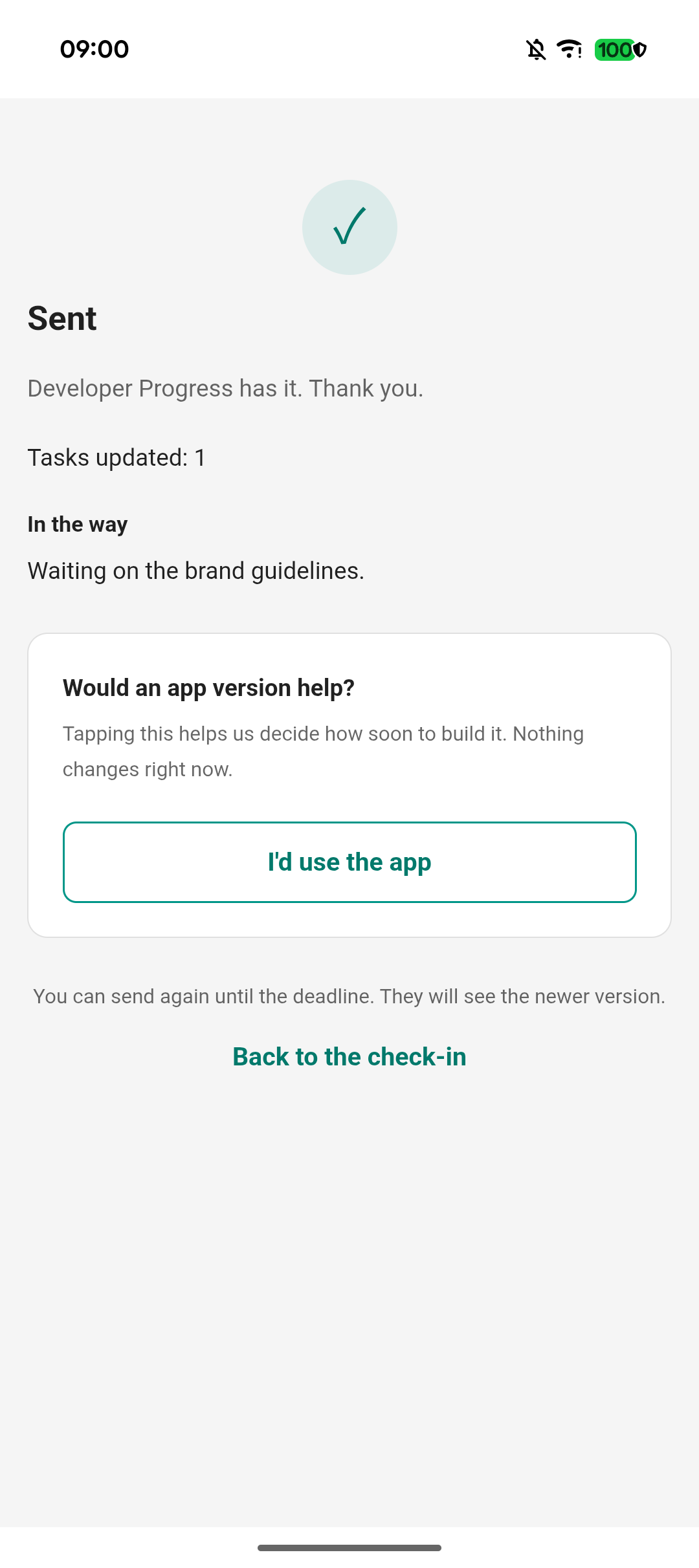
Working with other people? Member check-in lets you ask the people assigned to your tasks to report their progress, by email. They don't need a Progress account or the app: they open the link in the email, enter their progress and an optional comment, and send it. Their report is reflected in your app.
Turn it on
Go to Settings → In testing → Member check-in and switch it on. It's off by default, so nothing changes for you until you turn it on. You need to sign in with Google to use it (it isn't available in guest mode), because check-in emails have to show who is asking.
Set it up and send a check-in
Follow these steps.
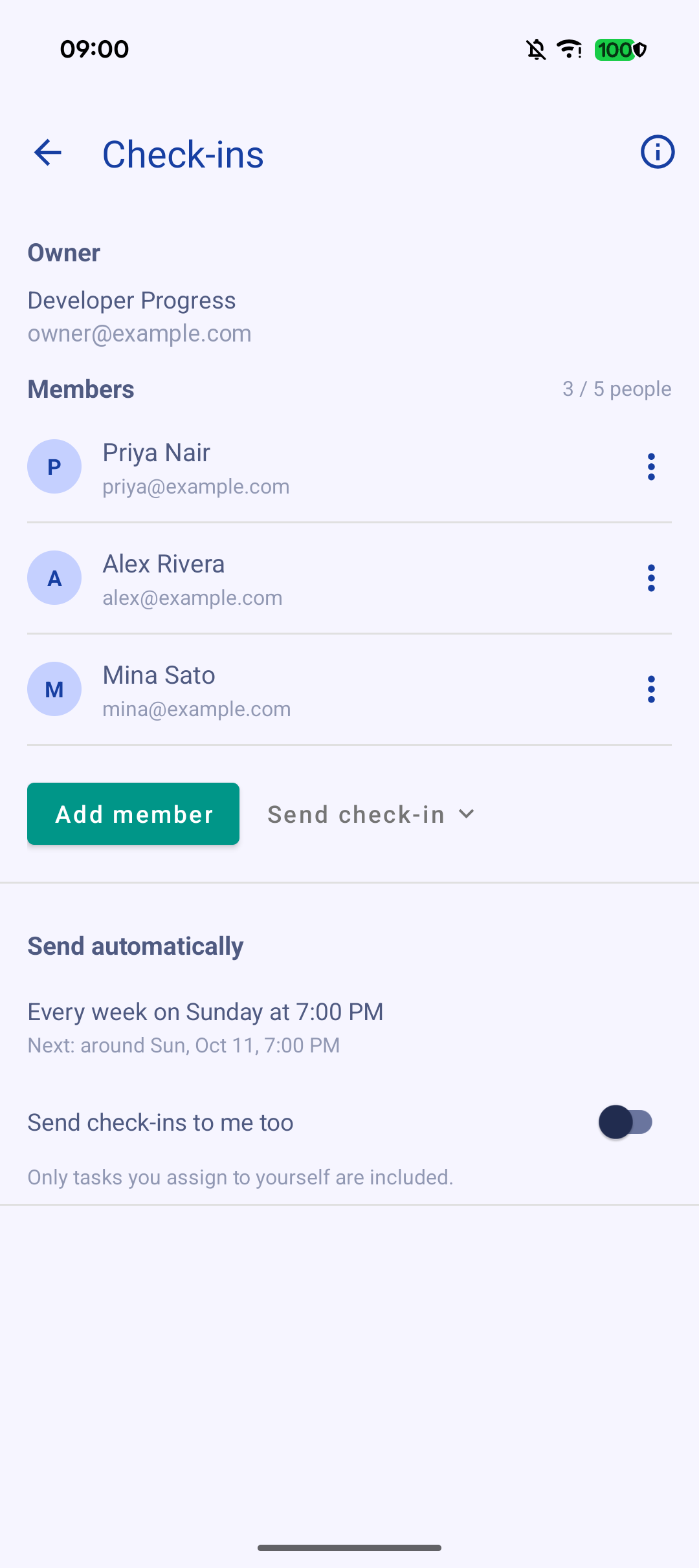
- Open Settings → Check-in settings. This opens the Check-ins screen.
- Tap Add member and enter their name and email address. Adding someone doesn't send anything. Only add people who have agreed to receive these emails.
- Open a task or subtask and choose the member in its assignee field.
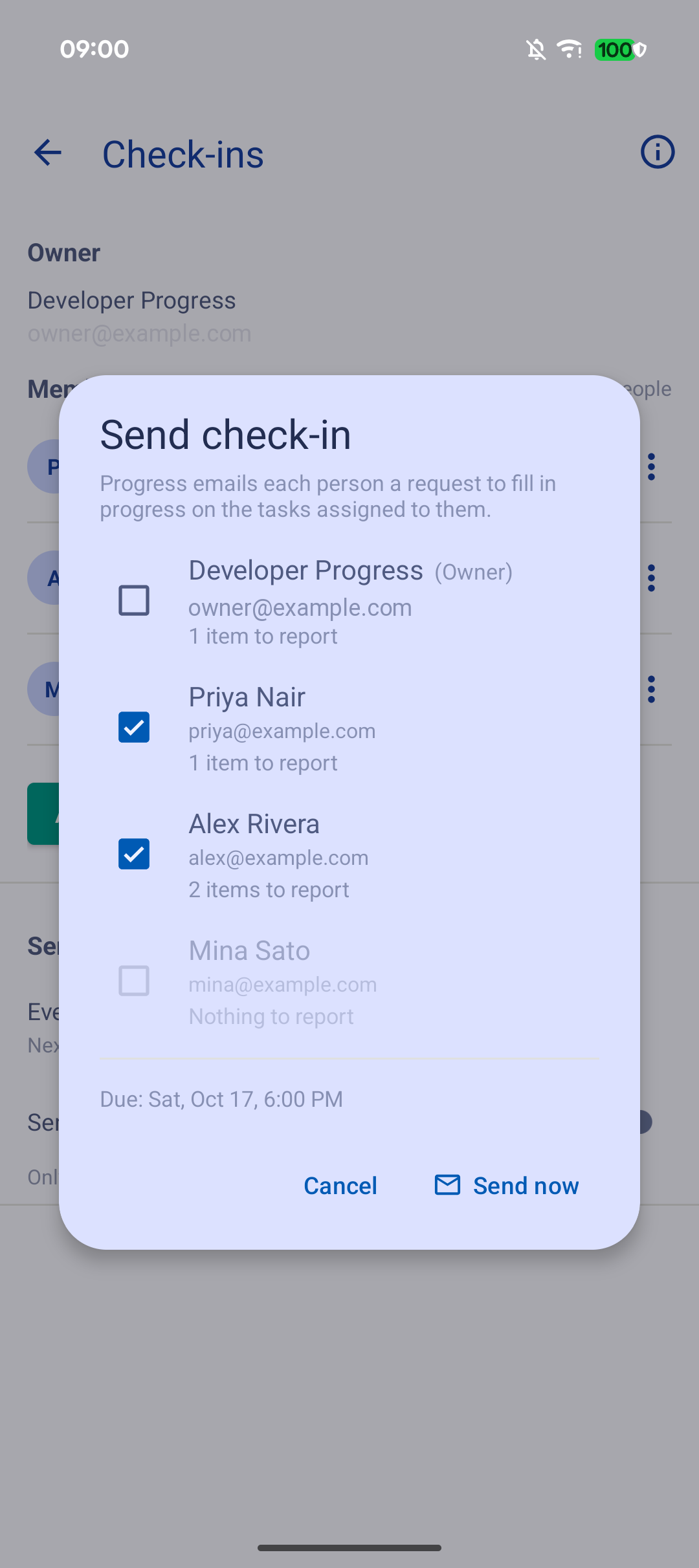
- Back on the Check-ins screen, tap Send check-in. You'll see who it goes to, how many items each person has to report on, and the due date for their reply. Tap Send now.
What your member does
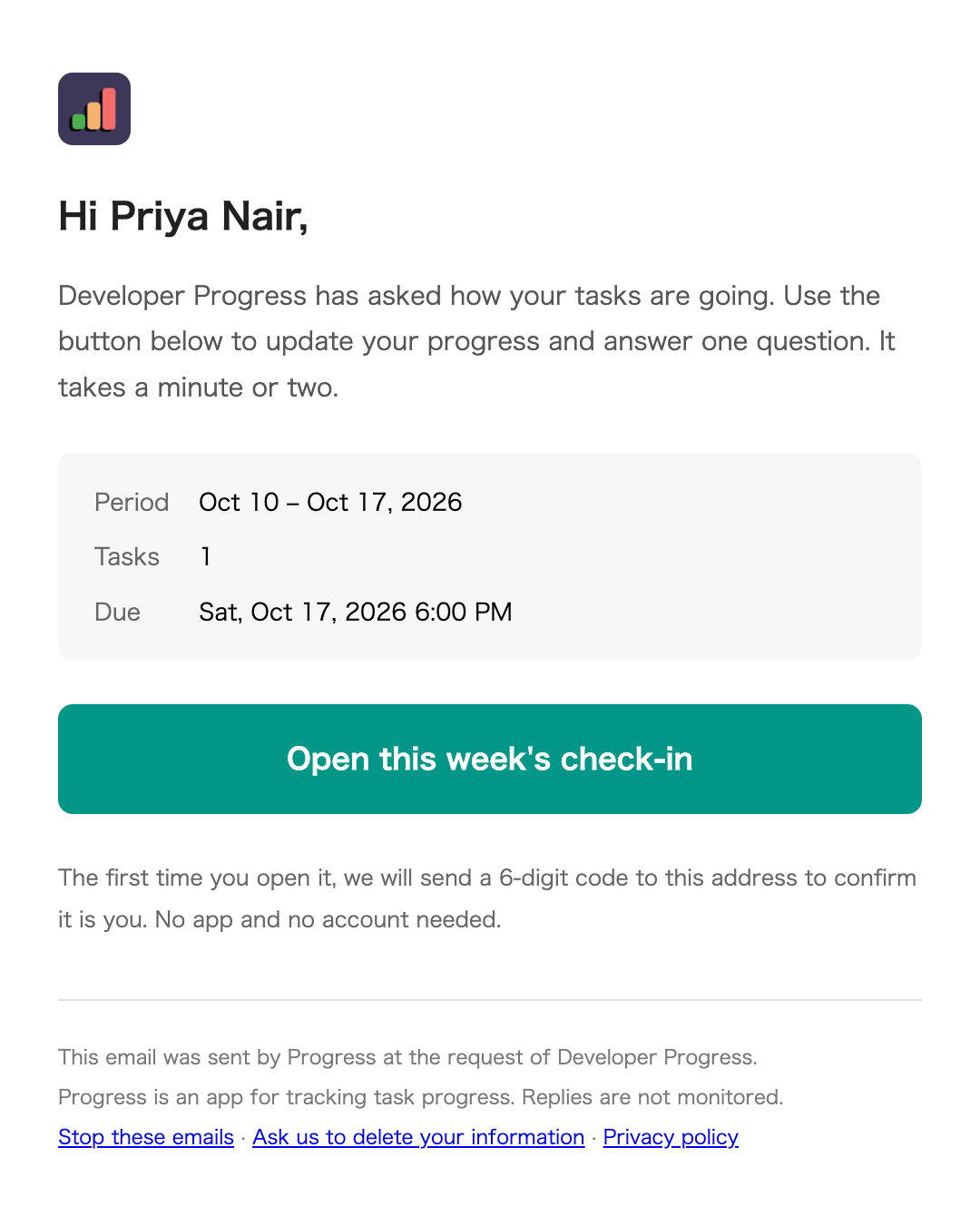
- They open the link in the check-in email.
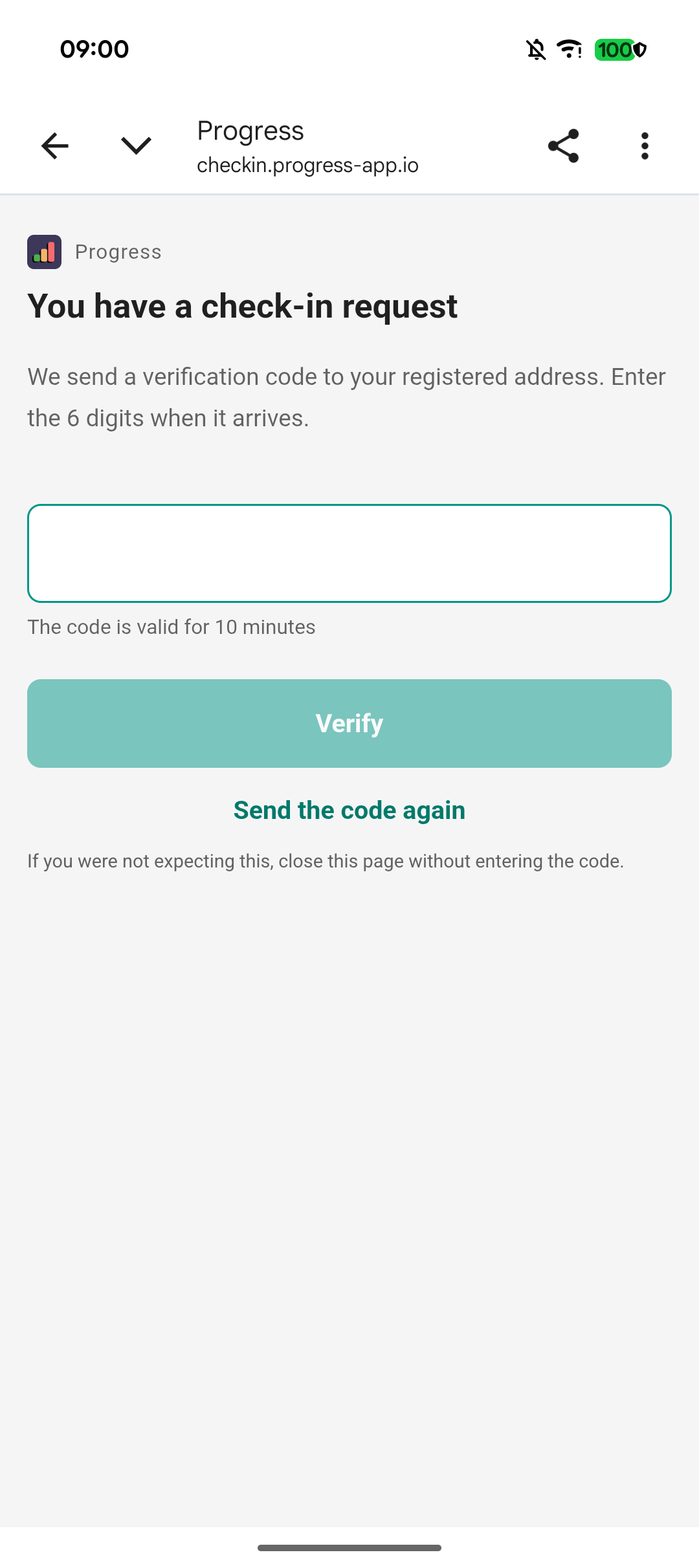
- The first time only, they get a 6-digit verification code by email to confirm it's really them.
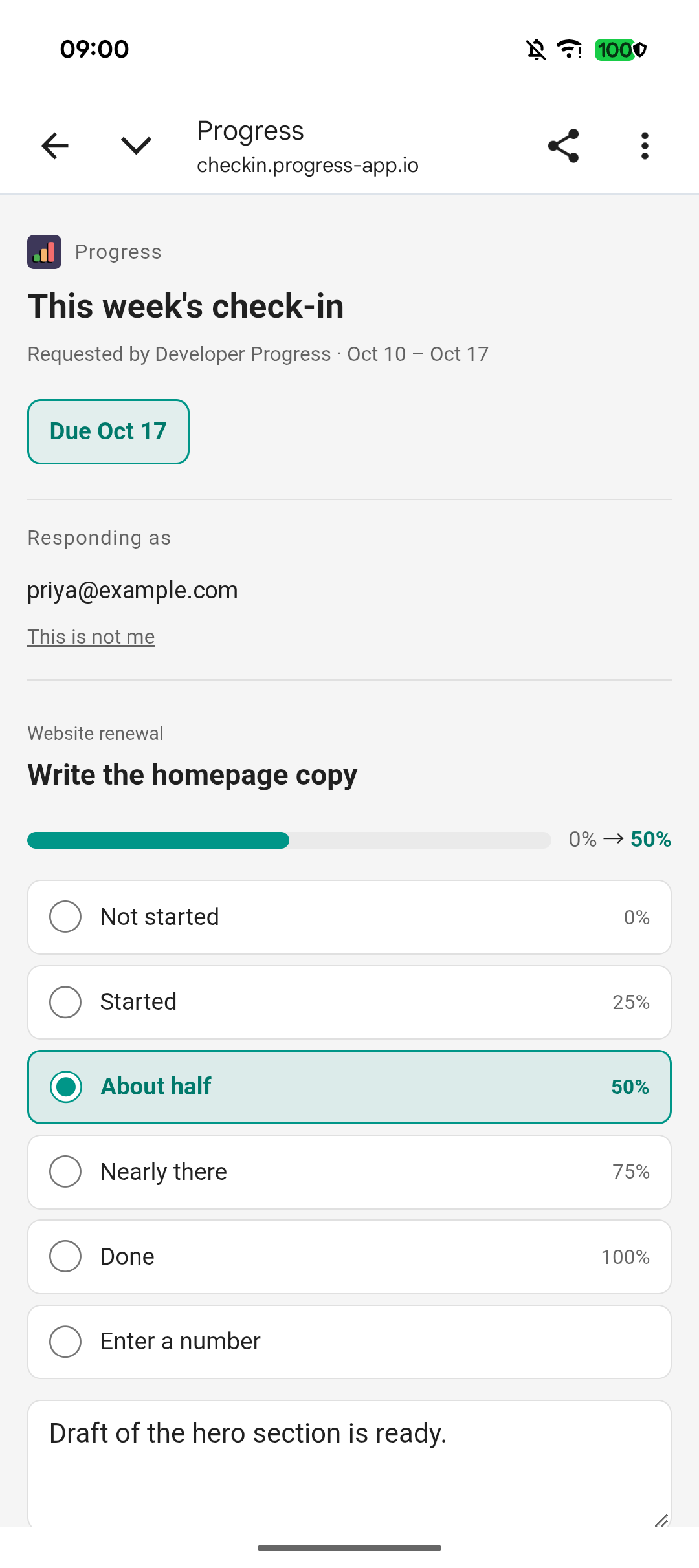
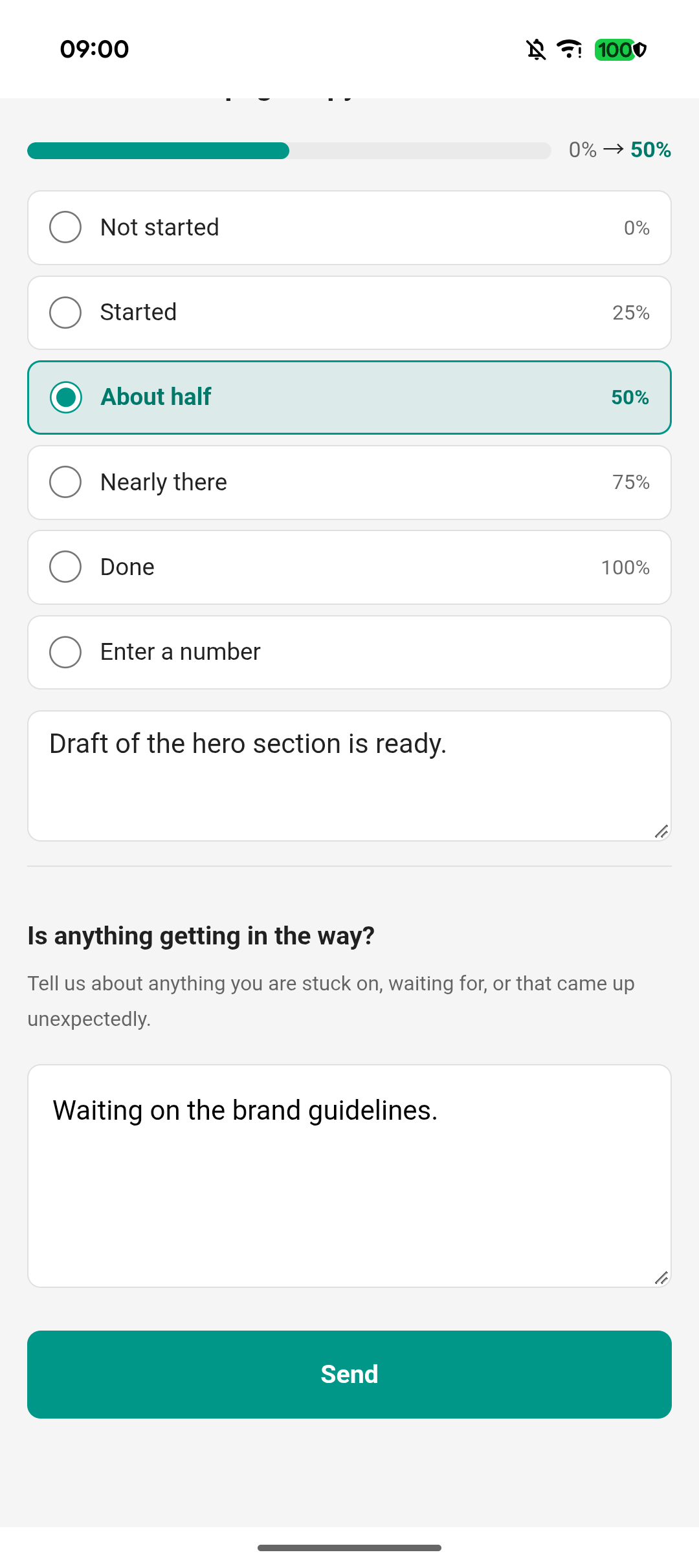
- For each item, they choose how far along it is (Not started, Started, About half, Nearly there, Done, or a number), add a comment if they want, and send. They can open the link again later to update their progress at any time. The overall note at the bottom (for example, what is blocking them) can be changed until the due date.
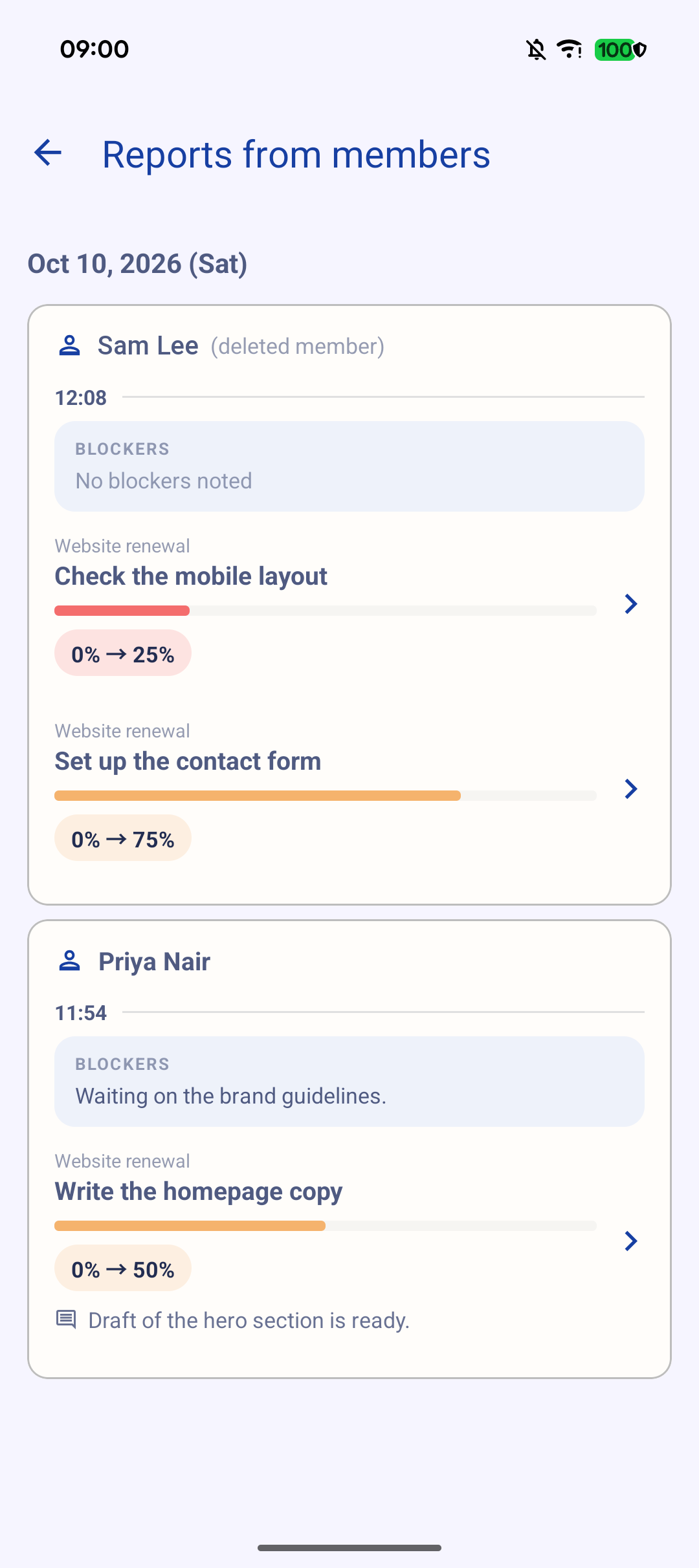
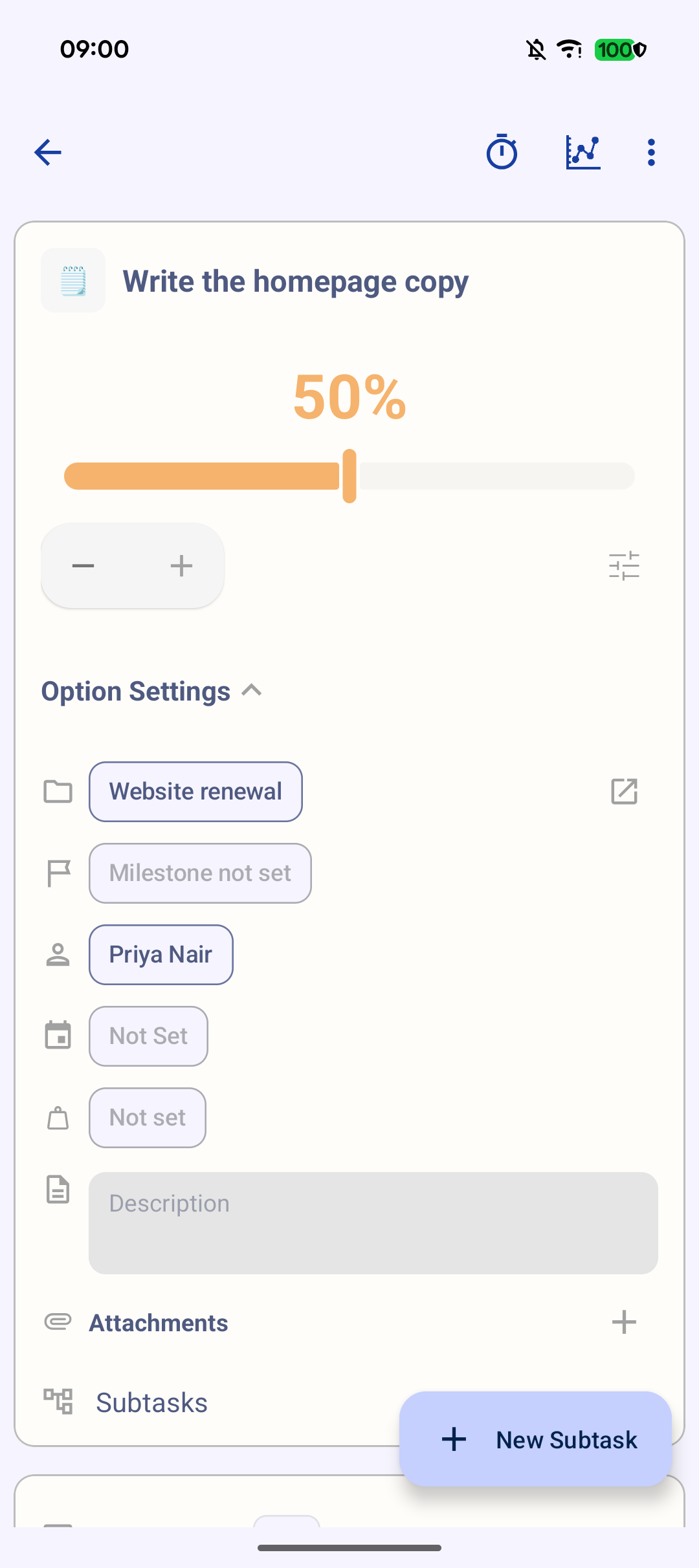
Their updates show up in your app. Their progress is applied to the task, and a comment written on an item appears in that task's comments with their name. You can read every reply under Member check-ins on the Home screen.
What gets reported on
- Only tasks and subtasks with an assignee set directly on them. Assigning a parent task does not carry over to its subtasks. To include the subtasks, assign each one.
- A task that has subtasks isn't reported on itself. Its progress comes from its subtasks, so assign those instead.
- For a recurring task, each round is what gets reported on.
Send check-ins to yourself
In the Send automatically section of the Check-ins screen, turn on Send check-ins to me too, and your automatic check-ins will also include the tasks you assign to yourself (choose Me as the assignee). Even with it off, you can choose yourself when you send a check-in by hand. Tasks with no assignee aren't included.
Automatic check-ins
Instead of sending by hand each time, use Send automatically on the Check-ins screen to send on a schedule: every week, every 2 weeks or every month, at a time you choose. If someone leaves 3 requests in a row unanswered, automatic check-ins to them are paused until you resume them.
Limits during the beta
| Item | Limit |
|---|---|
| Members | Up to 5 per account |
| Automatic check-ins | At most once a week (weekly, every 2 weeks or monthly; daily isn't available) |
| Manual check-ins | Up to 5 times per person in any 24 hours |
| Emails per month | 100 per account, counted over the last month |
Your members' privacy
Every check-in email has links in its footer that let the recipient stop receiving check-ins or ask for their information to be deleted. If someone asks for deletion, the app tells you and asks you to remove that member. Removing a member deletes their email address, but the reports they already sent stay in Reports from members, with (deleted member) after their name. See the Privacy Policy for details.
Still stuck? Contact us.
← Back to home